

Do you need a browser video-to-GIF tool that keeps going after the first export? The main difference here is not conversion itself, but how much trimming, resizing, captioning, or design work you can still do without leaving the tab.
Some tools treat GIF creation as the front door to a wider editor. Others behave more like a neat utility that turns one file into another and gets out of the way.
Editor workflow or clean conversion?
Adobe Express, Kapwing, VEED, and Canva all frame GIF conversion as part of a broader browser workflow. CloudConvert is better read as a dedicated conversion utility.
That distinction matters because a GIF is often not the final object. It may become a reaction loop, a tutorial fragment, a product snippet, or a design asset that still needs timing, framing, or text.
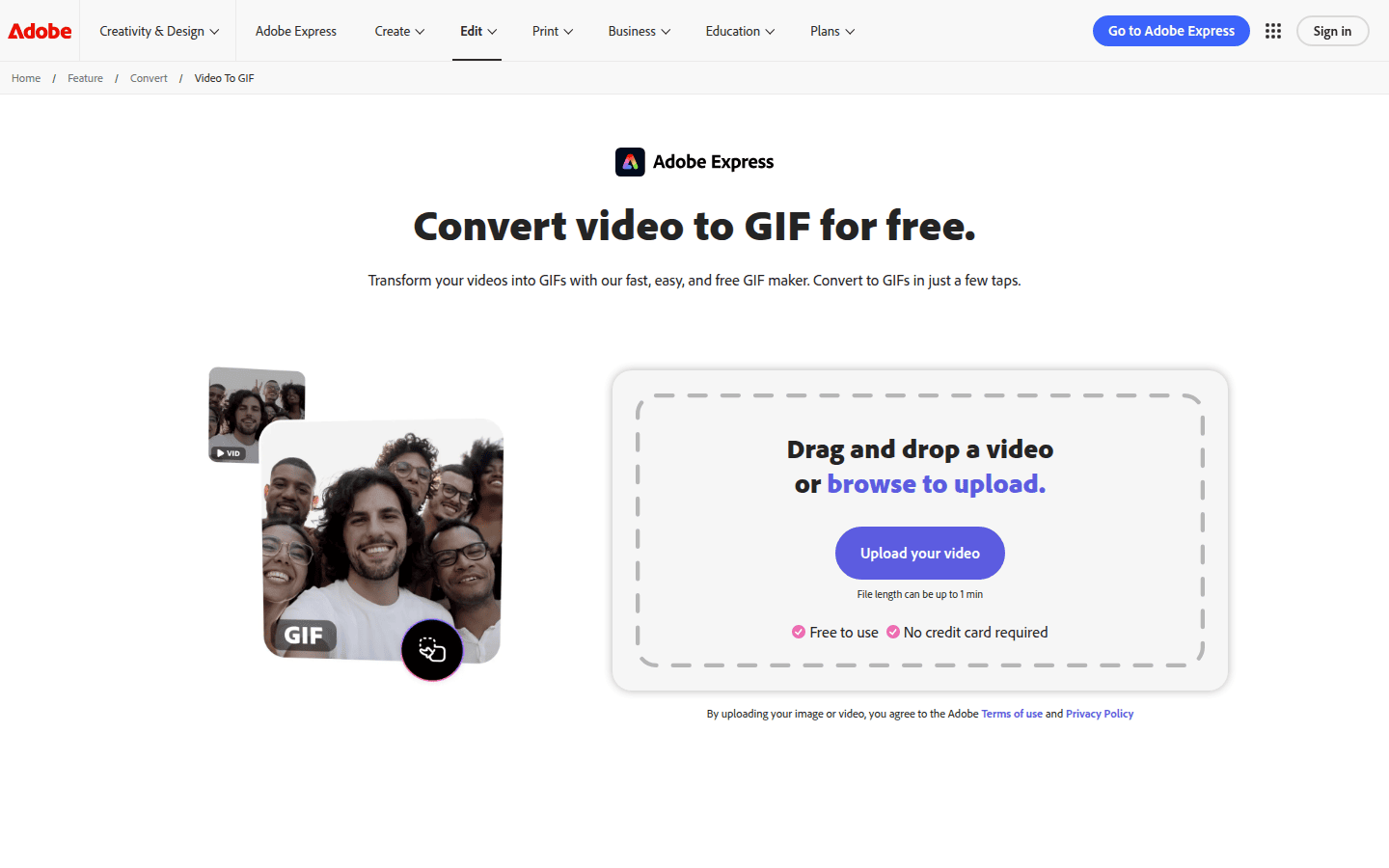
Adobe Express sits in the middle. Its dedicated converter is free to use, accepts common formats, lets you trim, choose GIF size, switch aspect ratio, and continue editing in Adobe Express.
Kapwing leans further toward the editor side. Its official converter says everything happens in the browser, and it explicitly sends you into Kapwing Studio if you want to keep refining the result.
VEED follows a similar path, with more emphasis on timeline-style edits. Its GIF maker highlights trim or split controls, then adds text, images, captions, and browser export.
Canva lands in this group for a different reason. It treats GIF creation less as a stand-alone task and more as one piece inside a broader design canvas where trim and subtitles belong to the same project.
CloudConvert is the outlier. It offers a dedicated GIF converter and public output controls such as resolution, quality, and file size, but not a captioning or creative editing workspace on these official pages.
What you can still change after upload
Adobe Express makes the clearest case for light visual edits. Its official page supports trimming, three GIF size options, square or landscape or portrait ratios, and a direct path to keep editing after conversion.
There is one notable limit: videos on that dedicated tool can be up to 1 minute long. If your source clip is already short and you mainly need cleaner framing for social placement, that may be enough.
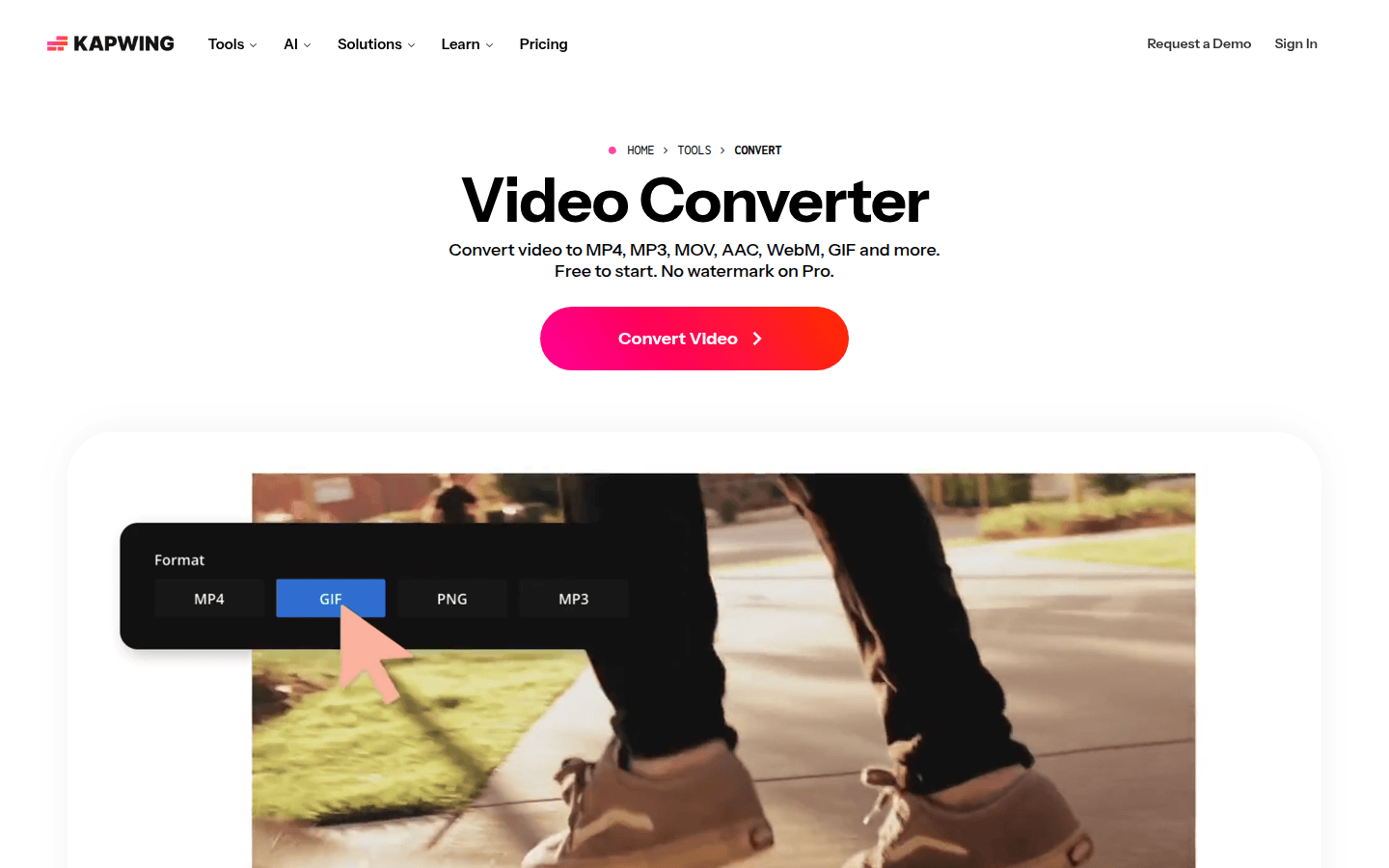
Kapwing gives you a more modular browser editor. The official convert tool lists trimming, cropping, subtitle support, and resize presets, then points you toward Kapwing Studio for deeper project work.
That makes Kapwing a good fit when the GIF is only one asset in a longer editing session. Export is not the end point; it is another step inside the same workspace.
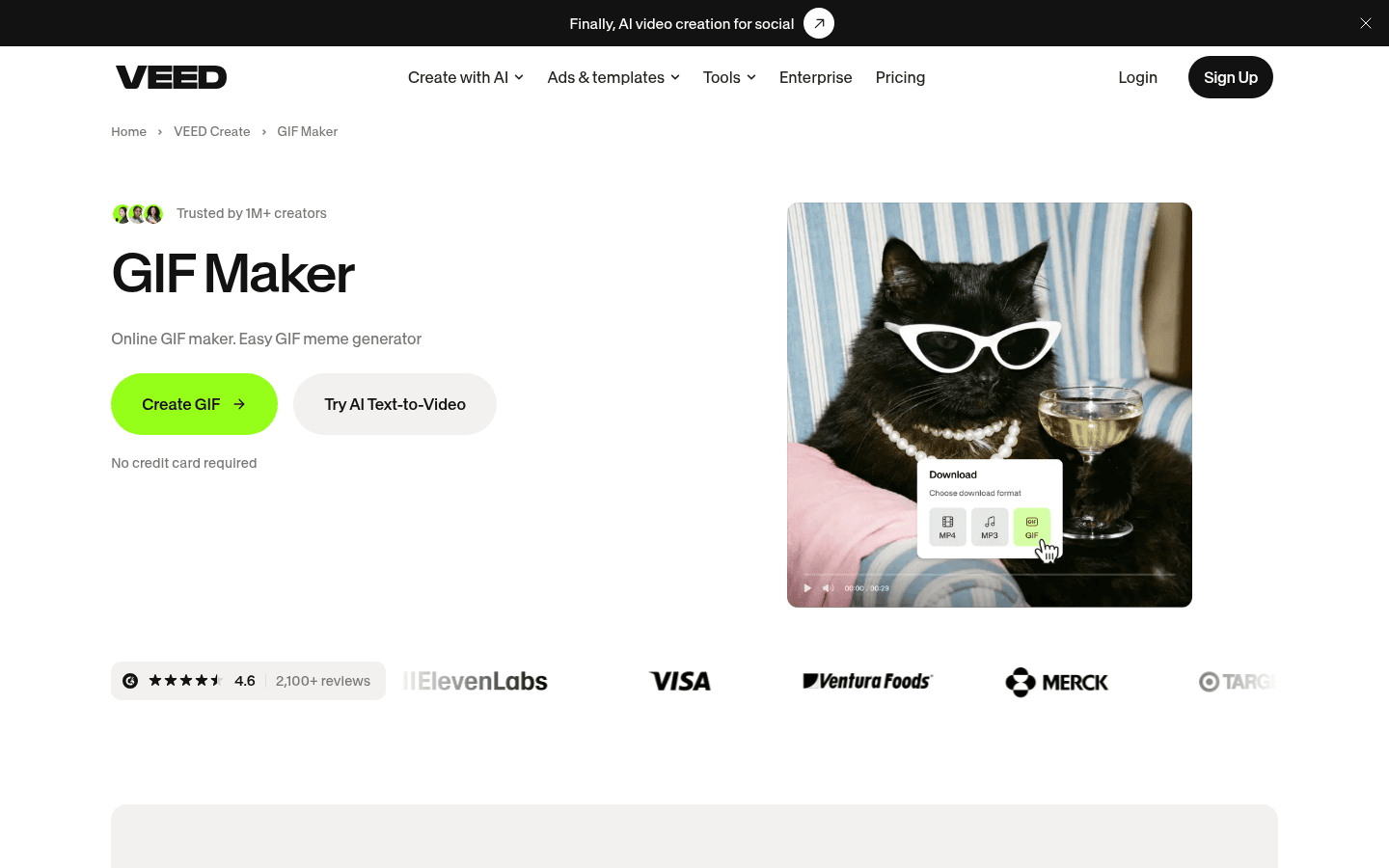
VEED is appealing when text and sequence edits matter. Its GIF maker says you can trim or split a video, then add text, images, or captions before exporting the GIF in the browser.
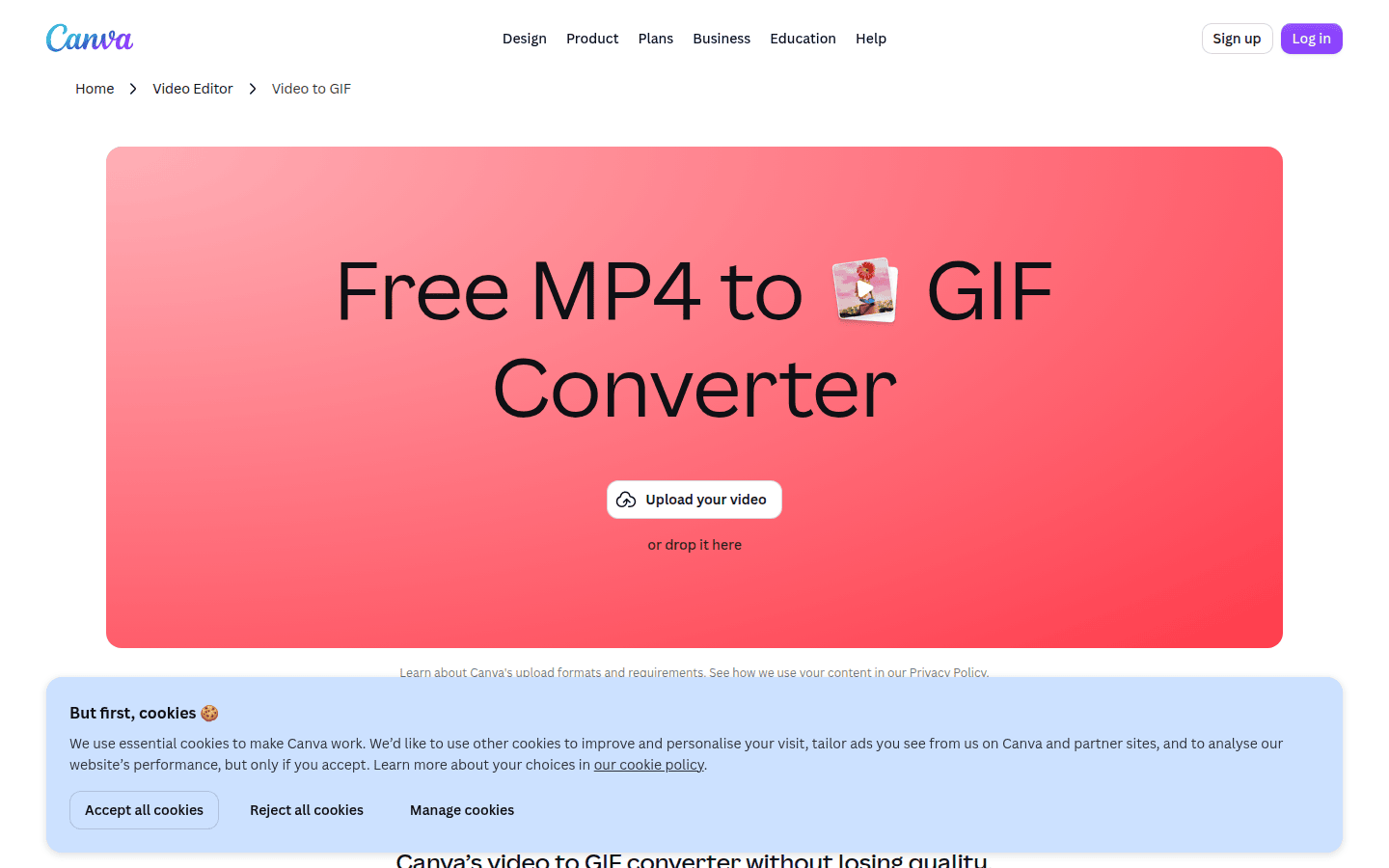
Canva works best in a different kind of workflow. Its converter supports MP4, MOV, MPEG, MKV, and WEBM uploads, along with trim and subtitle features inside the broader Canva canvas.
That setup helps when the GIF needs to live inside a presentation, social layout, campaign mockup, or brand template you are already building there. The conversion stays inside the composition.
CloudConvert keeps the task narrower. Its public pages support GIF conversion and adjustable output settings including resolution, quality, and file size, which is useful when export control matters more than creative edits.
Those strengths are technical rather than expressive. The official material does not present CloudConvert as a place for trim-heavy iteration, captioning, or broader post-conversion design work in the way the editor-first tools do.
How free use changes the shortlist
Free use can change the decision quickly, especially when the GIF is headed to a client, a public feed, or a design review. Watermarks and plan limits are not minor details here.
Kapwing is the easiest to sort. Its official policy says free exports include a watermark, and Pro users can export without one. If a visible mark breaks the job, free Kapwing is simple to rule out.
VEED falls into a similar category. Its video editor page says free exports include a watermark, and its help documentation says free-plan exports are limited to 720p, with higher resolutions on paid plans.
That does not cancel VEED’s editing strengths, but it does narrow the fit. It makes more sense for drafts, internal review, and experiments unless those free-export tradeoffs are acceptable.
Adobe Express is less settled on the watermark question from the official material here. Its converter clearly says the tool is free to use, but that dedicated page does not set a universal free-export watermark rule.
So Adobe Express remains attractive for lightweight browser editing, though watermark expectations are worth confirming on the live export path instead of assuming from a broad free-plan label.
Canva also needs a closer read. Its help documentation describes plan-specific GIF export limits, and its watermark behavior depends on whether premium elements are involved rather than applying to every free export.
That distinction matters. Canva should not be grouped too quickly with tools that place a mark on all free exports, because the conditions are different.
CloudConvert handles free use from another angle. Its pricing page publicly lists 10 conversions per day, a 1 GB max file size, and a 5 minute max processing time on the free tier.
That is a quota model rather than a branding model. If you care more about clean utility conversions than rich editing, those limits may be easier to plan around.
Pick based on the next move
If the next step is an immediate download with minimal fuss, CloudConvert is the clearest match. It behaves like a converter first, offers output-setting controls, and does not ask you to enter a broader editing workspace.
If the next step is light shaping without much complexity, Adobe Express has a strong case. Trim, size choices, aspect-ratio controls, and continued editing cover a lot of everyday social GIF work.
If the next step is repeated browser editing across subtitles, resizing, and project refinement, Kapwing fits better. It treats conversion as one part of an editor workflow rather than a one-click endpoint.
The trade-off is clear: free exports are watermarked. If your need is starting to look more like a broader editor choice than a GIF question, see The fastest social video editor depends on how you want to edit.
If the next step is richer message-building before export, VEED stands out. Trim or split controls plus text, images, and captions make it the strongest fit here for shaping the GIF inside the same tab.
The catch is free-use friction. Official pages state a watermark on free exports and 720p export on the free plan, so VEED makes the most sense when editing depth matters more than unrestricted free output.
If the next step is placing the GIF inside a designed composition, Canva makes more sense than a pure converter utility. Its trim and subtitle tools sit inside a broader visual workspace, which is often the real need.
That makes Canva especially sensible for marketers, social teams, and small brand operators who are arranging text, graphics, and layout around the moving asset rather than exporting the GIF in isolation.
What the product pages do not fully settle
Some differences are clear, and some remain open. A careful pick here means paying attention to what the public pages do not completely answer.
Adobe Express clearly supports free use, short uploads, trim, size, aspect ratio, and continued editing. The available official pages do not, however, establish a firm universal watermark rule for this converter.
Kapwing clearly supports browser editing and clearly watermarks free exports. The available official materials are not consistent enough here to publish one exact free export-length cap without checking the live product again.
VEED clearly supports creative browser editing and clearly documents a free watermark plus 720p free exports. What these available pages do not clearly provide is a GIF-specific duration cap.
Canva clearly supports conversion, trim, subtitles, supported upload formats, and plan-based GIF export limits. Its watermark behavior should not be flattened into the same all-free-exports language used for Kapwing or VEED.
CloudConvert clearly supports conversion and output controls. The official pages here do not support describing it as a timeline editor, caption tool, or design workspace.
The short version
Choose CloudConvert if you mainly want a clean browser converter with output controls and a quick download. Choose Adobe Express if you want lightweight iteration after conversion without a heavier editor feel.
Choose Kapwing if you want an editor-first browser workflow and can accept free watermarks or move to a paid plan. Choose VEED if richer in-browser text and clip editing matter most before export.
Choose Canva if the GIF needs to stay inside a wider design project with trim and subtitle support. The best choice here matches your next action, not the tool that merely makes a GIF.
 Icon Template
 Photo Template
 Photo Template
 Logo Template