Why Large-Format Print Demands Specific Design Tools
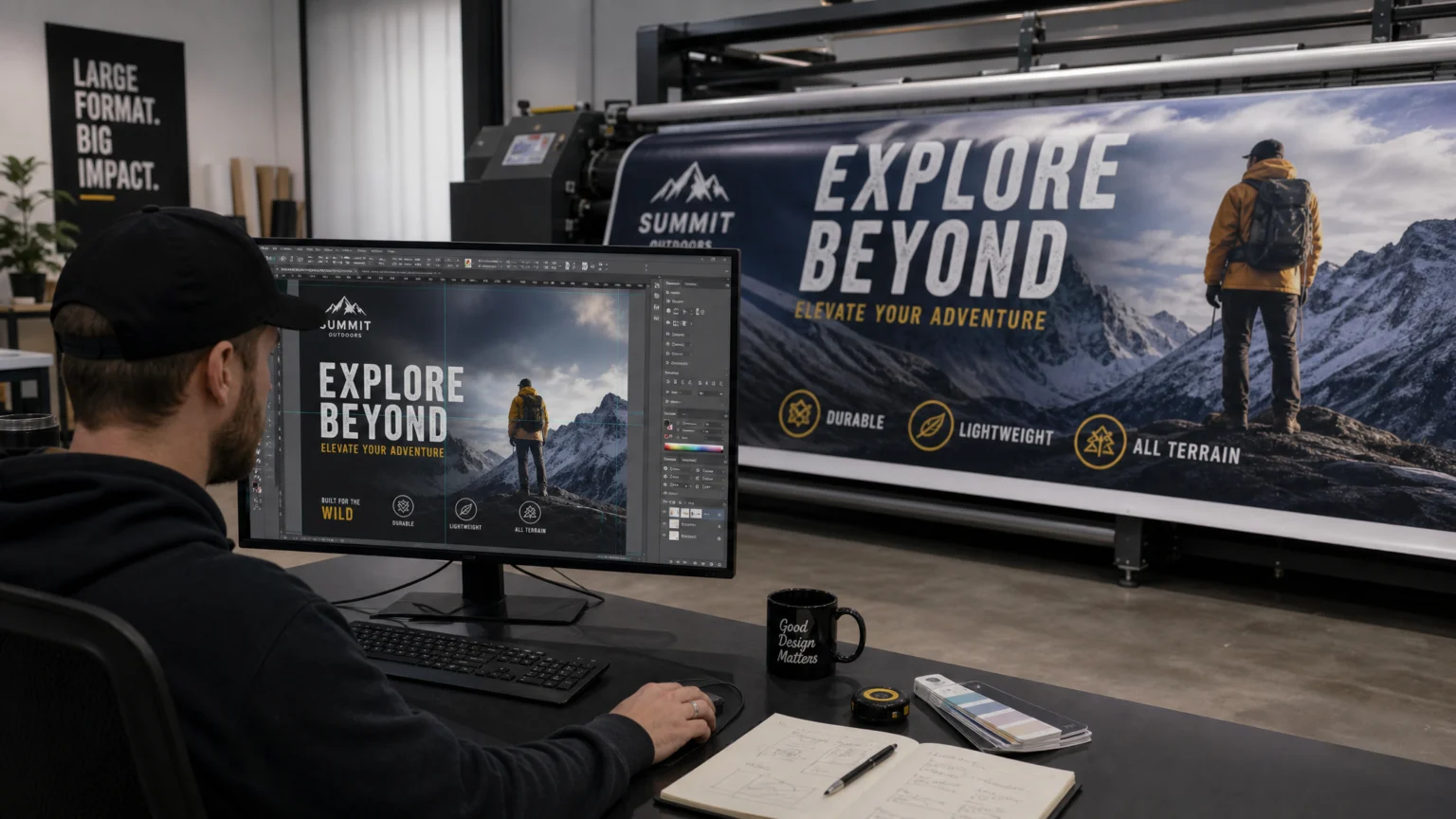
Producing large-format print, such as banners, billboards, or vehicle wraps, introduces unique challenges that standard design tools often struggle with. The sheer scale means that small imperfections in resolution, color profile, or file handling become glaring errors when printed. Designers must consider not just the visual impact, but also the technical specifications required by commercial printers. This includes managing document dimensions that can exceed typical software limits, ensuring precise bleed and crop marks, and exporting files in a format that preserves integrity across vast surfaces. A platform that excels at web graphics might fall short when preparing a file for a 20-foot banner.
Adobe InDesign: Precision for Professional Print Production
Adobe InDesign is an industry standard for professional print production, offering extensive control over output settings. When preparing files for large-format printing, InDesign allows designers to produce print-ready PDFs by selecting the Adobe PDF (Print) option during export. This workflow ensures that critical elements like fonts, images, and color profiles are correctly embedded and optimized for commercial presses.
For oversized documents, InDesign handles designs up to 200 inches by 200 inches natively. If a project exceeds these dimensions, such as a billboard design, InDesign provides a scaling workaround. Designers can set the Width and Height percentages from 1 to 1000 in the Print dialog, effectively scaling down the design for creation while preserving the correct proportions for the final output. However, it’s important to note that InDesign crops content extending beyond 200″ × 200″ during PDF export, which means designers must carefully plan their scaling or tiling strategy for truly massive formats.
InDesign Workflow Considerations
InDesign’s strength lies in its comprehensive feature set for managing complex layouts, typography, and image placement, making it suitable for projects where precision is paramount. Its integration with other Adobe Creative Cloud applications also streamlines workflows for designers already using Photoshop or Illustrator for asset creation. That same ecosystem also covers the lighter end of print: Adobe Express lets you print everyday materials like flyers, along with posters, postcards, brochures, and business cards, from ready-made templates without InDesign’s learning curve. For intricate print specifications, though, including custom bleed, slug, and trim marks, InDesign remains unmatched for professional results.
Affinity Publisher: Cost-Effective Professional Output
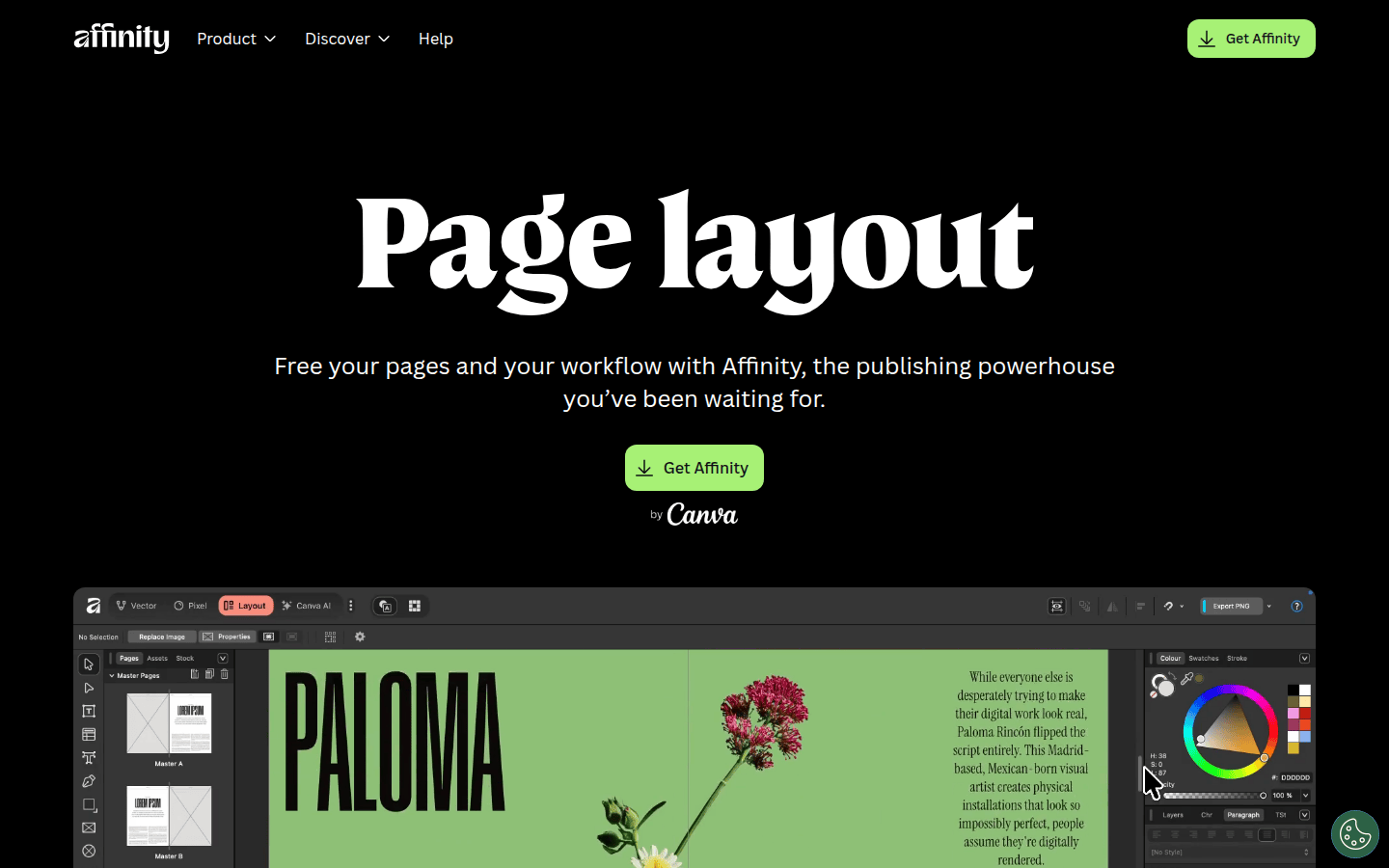
Affinity Publisher offers a robust alternative for professional print workflows, particularly appealing to those seeking a one-time purchase model rather than a subscription. It provides dedicated export controls that are well-suited for print-oriented PDF workflows. The export dialog includes specific options for managing print output, allowing designers to control aspects like color space, compression, and font embedding.
Publisher supports essential features for professional printing, such as bleed and crop marks, which are crucial for ensuring accurate trimming and preventing white edges on the final printed piece. While it may not have the same market penetration as InDesign, its focus on professional-grade features at a more accessible price point makes it a strong contender for independent designers or smaller studios. The software aims to offer a similar level of control over print specifications, making it viable for many large-format projects.
Affinity Publisher Workflow Considerations
Designers transitioning from other professional layout software will find Affinity Publisher’s interface familiar, reducing the learning curve. Its ability to handle large documents and provide detailed export settings means it can reliably produce files ready for commercial printers. When comparing it to InDesign, the primary difference for large-format work often comes down to specific workflow integrations or niche features, rather than core print readiness. For example, a design agency that needs to link to many other Adobe files might find InDesign’s ecosystem more efficient, but for standalone large-format projects, Publisher holds its own.
Canva: Simplified Approach for Basic Print Needs
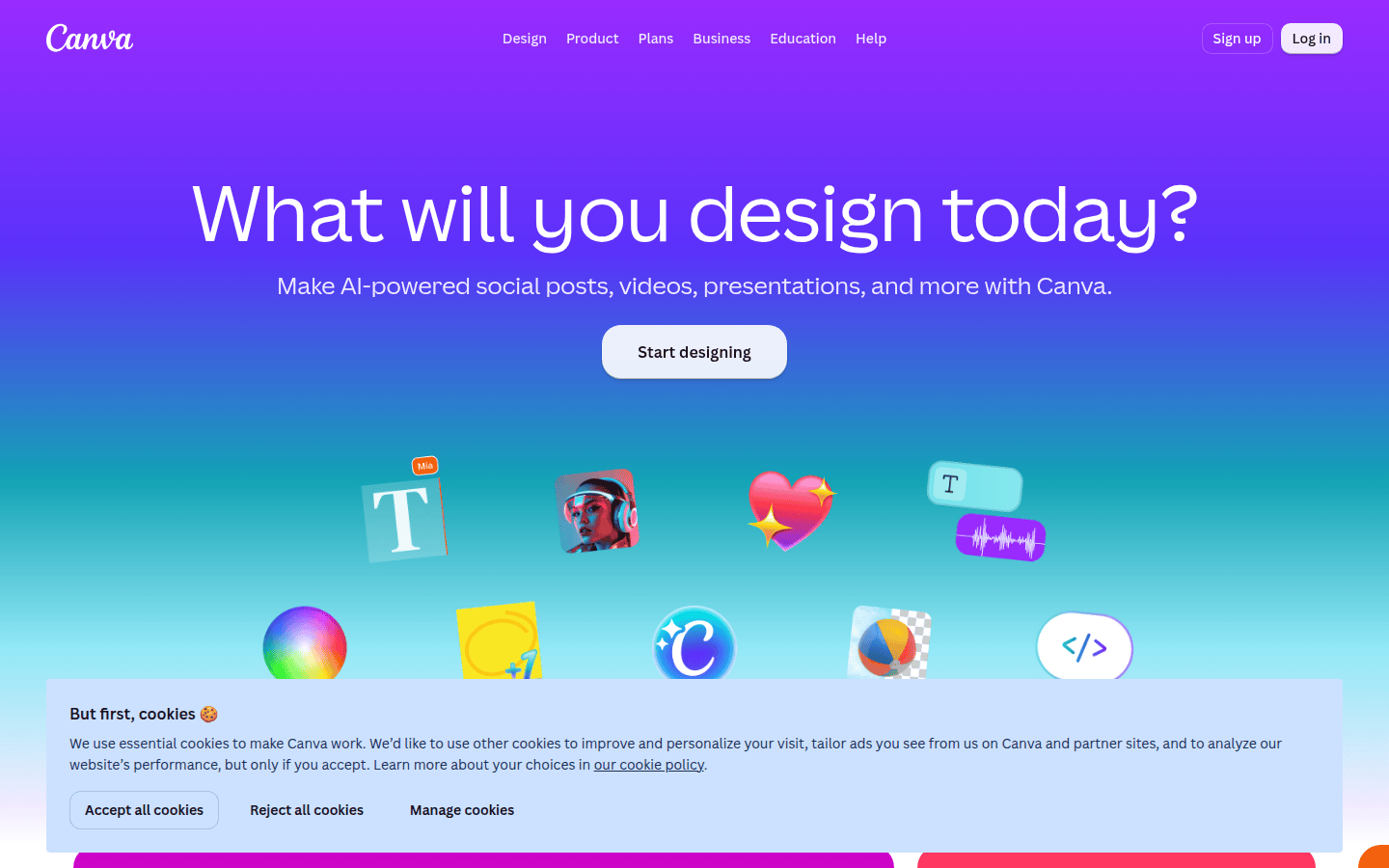
Canva is a web-based design tool known for its user-friendliness and extensive template library, making it popular for quick design projects. While not designed specifically for complex large-format print production, Canva does offer print-related export guidance in its help center. This indicates its utility for simpler print workflows, such as posters, flyers, or small banners that don’t require highly specialized print specifications.
The platform simplifies the design process, often abstracting away the technical complexities of print files. This can be an advantage for users without extensive design or print production experience. However, this simplification also means less granular control over critical print settings like custom bleed amounts, specific color profiles (beyond basic CMYK), or advanced printer marks. For very large formats or projects with strict print vendor requirements, Canva’s streamlined approach might prove limiting.
Canva Workflow Considerations
Canva is best suited for projects where speed and ease of use are priorities, and the large-format requirements are relatively straightforward. For instance, creating an event banner that will be printed by a local shop with standard specifications might be feasible. However, for a complex trade show booth graphic or a vehicle wrap that demands precise vector handling and specific cut lines, a more specialized tool would be necessary. Designers should verify that Canva’s export options meet their printer’s exact specifications before committing to it for critical large-format work.
Choosing the Right Platform for Your Large-Format Project
The choice of design platform for large-format print projects depends heavily on the complexity of the design, the required level of print precision, and the designer’s experience. For professional-grade output with maximum control over every print specification, Adobe InDesign remains the industry benchmark. Its ability to handle oversized documents through scaling and its robust PDF export options make it ideal for demanding projects.
Affinity Publisher provides a compelling, cost-effective alternative, delivering professional print export capabilities and essential controls like bleed and crop marks. It’s a strong choice for designers who need advanced features without the subscription model. For quick, less complex large-format needs where ease of use is paramount, Canva can serve as a starting point, but designers should always confirm its output capabilities align with their printer’s requirements.
Ultimately, the decision should balance the project’s technical demands with the designer’s comfort level and budget. A large-format design is a visible decision; ensuring the tool supports the desired visual outcome and print quality is critical.
 Logo Template
 Photo Template
 Photo Template
 Logo Template