
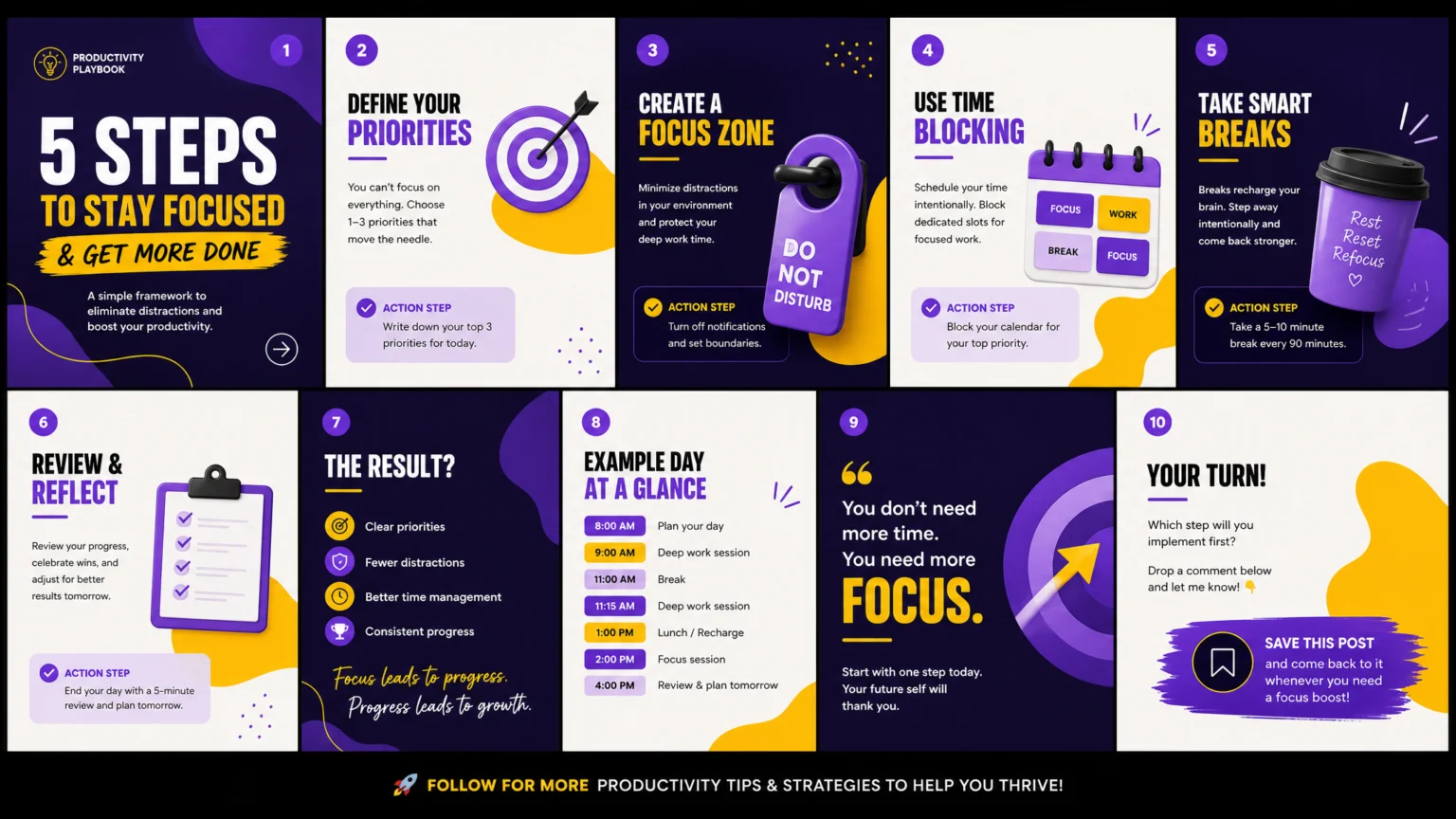
Why Carousels Capture Attention
Social media carousels offer a unique opportunity to tell a story or present information in a digestible, sequential format. Unlike single-image posts, carousels encourage users to swipe, increasing engagement and time spent with your content. This format is particularly effective for tutorials, product showcases, before-and-after comparisons, or breaking down complex ideas into simple steps. By guiding the viewer through a series of slides, you can build anticipation and deliver a more comprehensive message, making your content more memorable and impactful.
The interactive nature of carousels also helps them stand out in crowded feeds. Users are more likely to pause and engage with content that requires a deliberate action, such as swiping. This extended interaction can signal to algorithms that your content is valuable, potentially increasing its reach. Crafting effective carousels doesn’t require bespoke designs or advanced software; it relies on understanding how to structure your message across multiple panels and utilizing accessible design tools.
Step 1: Plan Your Narrative Across Multiple Slides
Before opening any design software, outline the core message and how it will unfold across your carousel. A strong first slide is crucial for hooking your audience and encouraging them to swipe. This initial panel should clearly state the topic or pose an intriguing question. Think of it as a headline for your entire carousel. Following this, each subsequent slide should present one distinct idea or a logical progression of information, ensuring clarity and preventing information overload. Metricool emphasizes the importance of creating seamless transitions between slides, making the progression feel natural and cohesive.
Consider the total number of slides needed to convey your message without overwhelming the viewer. While platforms like Instagram allow up to 10 slides, not every carousel needs to use all of them. The goal is to maintain engagement, not to fill every available slot. Sprout Social recommends ending with a direct call to action, guiding your audience on what to do next, whether it’s visiting a link, commenting, or saving the post. This planning phase ensures your carousel has a clear beginning, middle, and end, maximizing its effectiveness.
Step 2: Choose and Customize a Template
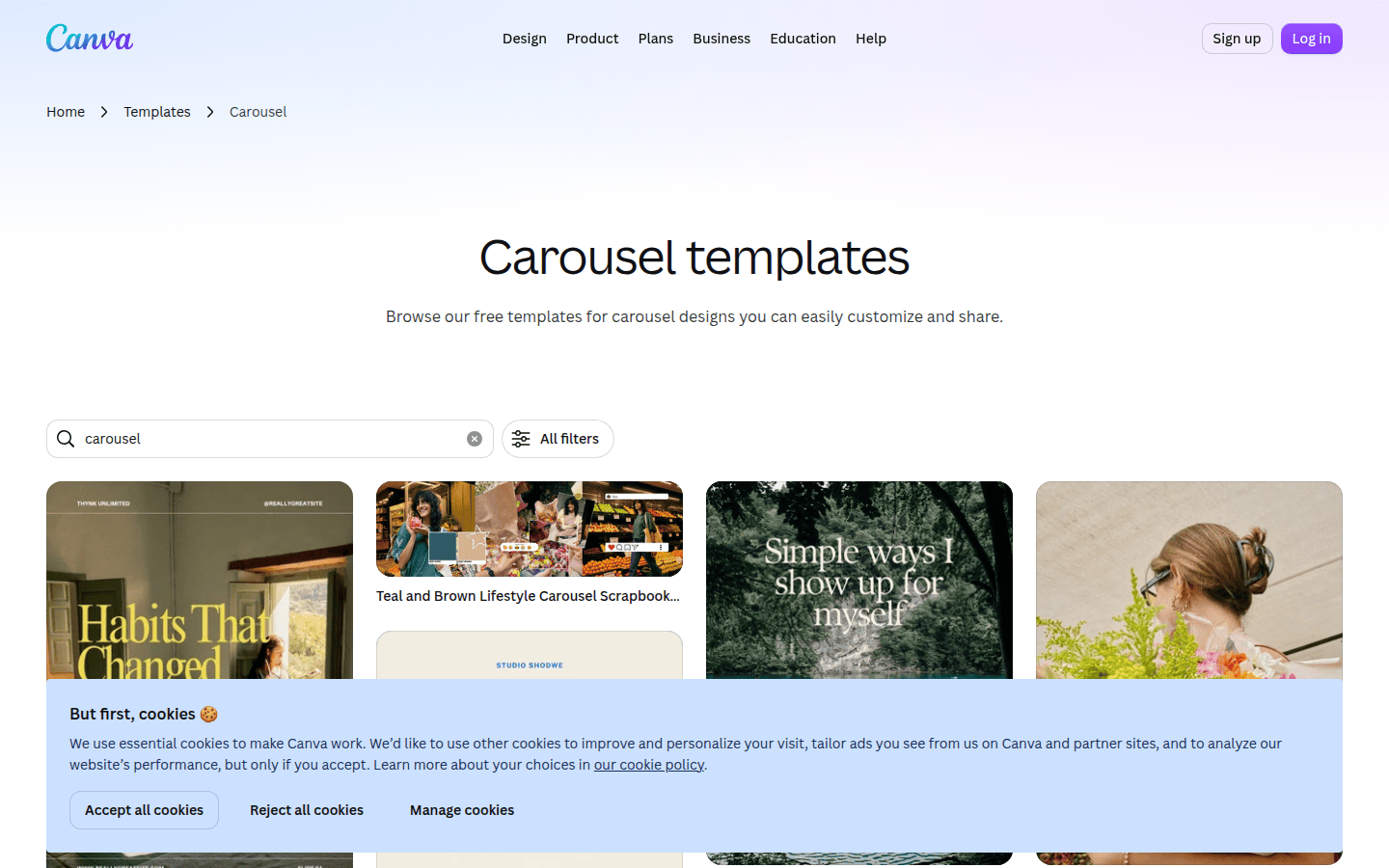
Many design platforms offer free, customizable carousel templates that simplify the creation process. Canva, for instance, provides extensive collections of carousel templates, including dedicated options for Instagram. These templates serve as a strong starting point, providing pre-designed layouts and visual structures that you can adapt to your specific content. The key is to select a template that aligns with your brand’s aesthetic and the tone of your message.
Once you’ve chosen a template, customize it to reflect your brand identity. This involves adjusting colors, fonts, and imagery to match your existing style guide. While templates provide a foundation, personalizing them ensures your carousel feels authentic and consistent with your other content. Even without custom templates, these pre-built options offer a professional look and feel, saving time and effort while maintaining high visual standards.
When customizing, pay attention to visual consistency across all slides. This includes maintaining a uniform color palette, font styles, and graphic elements. Consistency helps create a seamless visual flow, reinforcing the idea that each slide is part of a larger story. Avoid introducing too many new design elements on each slide, which can distract from the message and break the visual rhythm.
Screenshot of Canva’s carousel template library for social media.
Step 3: Craft Engaging Visuals and Text
With your narrative planned and a template selected, focus on populating each slide with compelling visuals and concise text. For visuals, use high-quality images, illustrations, or icons that directly support your message. If you’re using photographs, ensure they are well-lit and relevant. Canva’s drag-and-drop editor makes it easy to swap out placeholder images with your own or select from their extensive stock photo library. Remember that visuals should enhance, not overpower, your text.
Text on carousel slides should be brief and to the point. Each slide should ideally convey one main idea, using clear, readable fonts. Break down longer sentences into bullet points or short phrases to improve readability, especially on mobile devices. Common best practices suggest using a hook on the first slide and maintaining visual consistency across slides, ensuring that the text complements the visuals and guides the reader smoothly from one panel to the next. Avoid jargon or overly complex language; aim for clarity and accessibility.
Step 4: Ensure Seamless Transitions and Visual Flow
A hallmark of an effective carousel is a seamless transition between slides. This can be achieved through various design techniques, even when using stock templates. One common method is to extend a visual element, such as a background color, a shape, or even a continuous image, across the boundary of two or more slides. This creates an optical illusion that encourages the swipe and makes the carousel feel like a single, unfolding canvas rather than a series of disconnected images.
Another technique involves placing text or graphic elements so they are partially visible on the edge of the preceding or succeeding slide. This subtle hint prompts users to swipe to reveal the full content. Metricool’s guide emphasizes this seamless flow, noting how it enhances the user experience. By carefully arranging your elements, you can guide the viewer’s eye and maintain their interest throughout the entire carousel, transforming a series of individual images into a cohesive visual story.
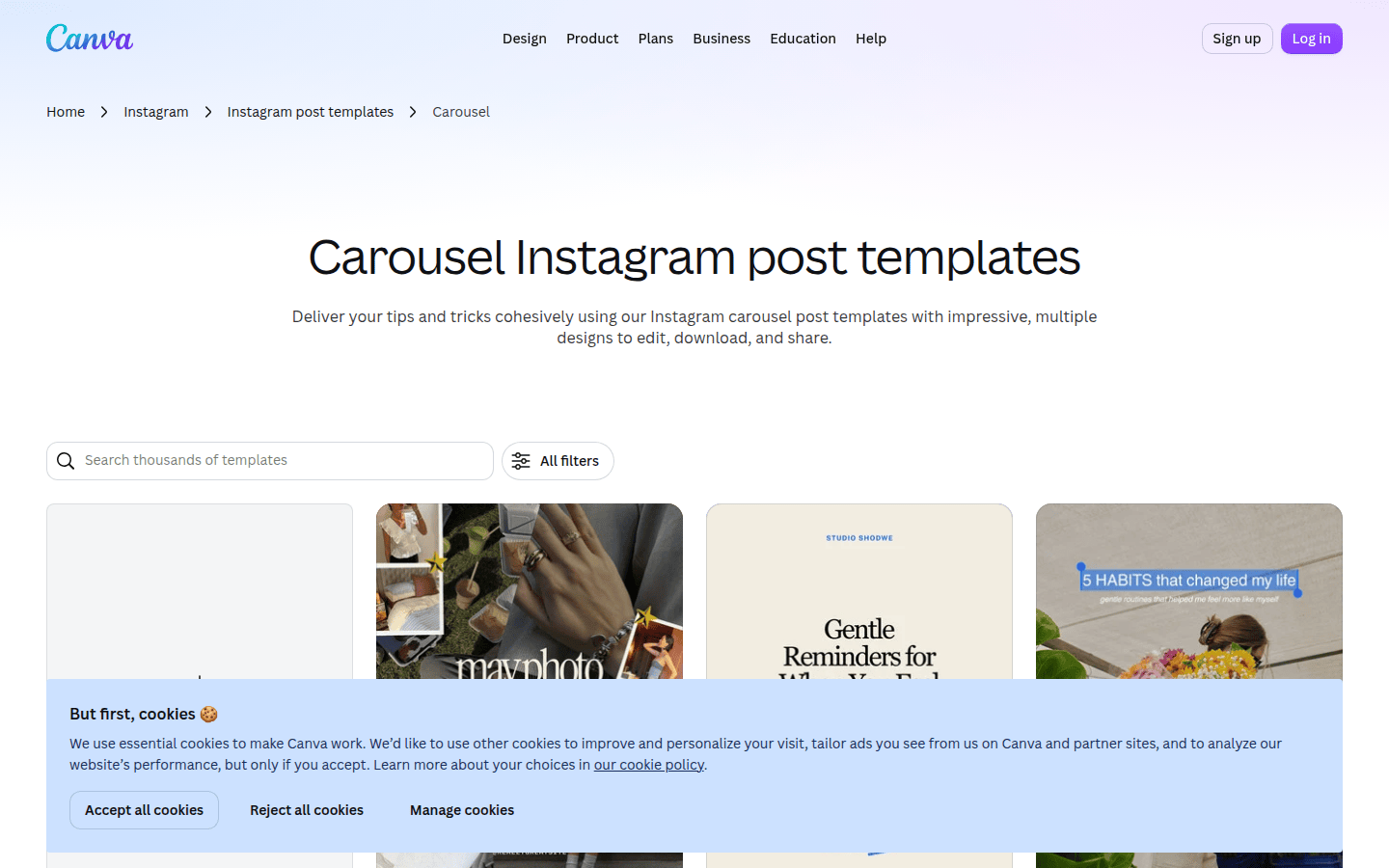
Screenshot of Instagram carousel post templates in Canva.
Step 5: Optimize for Platform and Export
Different social media platforms have specific sizing and aspect ratio requirements for carousel posts. Instagram carousels, for example, are typically square (1:1 aspect ratio) or portrait (4:5). Before exporting, ensure your design adheres to the recommended dimensions for your target platform to avoid awkward cropping or loss of detail. Most design tools, including Canva, offer pre-set canvas sizes for various social media posts, simplifying this step.
When exporting, save your carousel as individual image files (e.g., PNG or JPG) in the correct sequence. Some platforms might allow you to upload multiple images at once, which they will then compile into a carousel. Double-check the order of your slides before publishing to ensure your narrative flows as intended. A quick preview on your device can help catch any alignment or readability issues before your post goes live. This final check ensures your carefully crafted carousel looks polished and professional on any screen.
Step 6: Write a Compelling Caption and Call to Action
While the visual design of your carousel is paramount, the accompanying caption plays a vital role in providing context, adding value, and driving engagement. Your caption should complement the visual story, not simply repeat what’s on the slides. Use it to elaborate on points, share additional insights, or ask questions that encourage comments and discussion. Metricool highlights the importance of strong captions in maximizing carousel post effectiveness.
As Sprout Social suggests, always include a clear call to action (CTA) in your caption or on the final slide. This could be “Swipe to learn more,” “Visit our link in bio,” “Tag a friend,” or “Save this post for later.” A well-placed CTA directs your audience on what to do next, converting passive viewers into active participants. Combine a visually engaging carousel with a thoughtful caption and a clear CTA to maximize your social media impact.
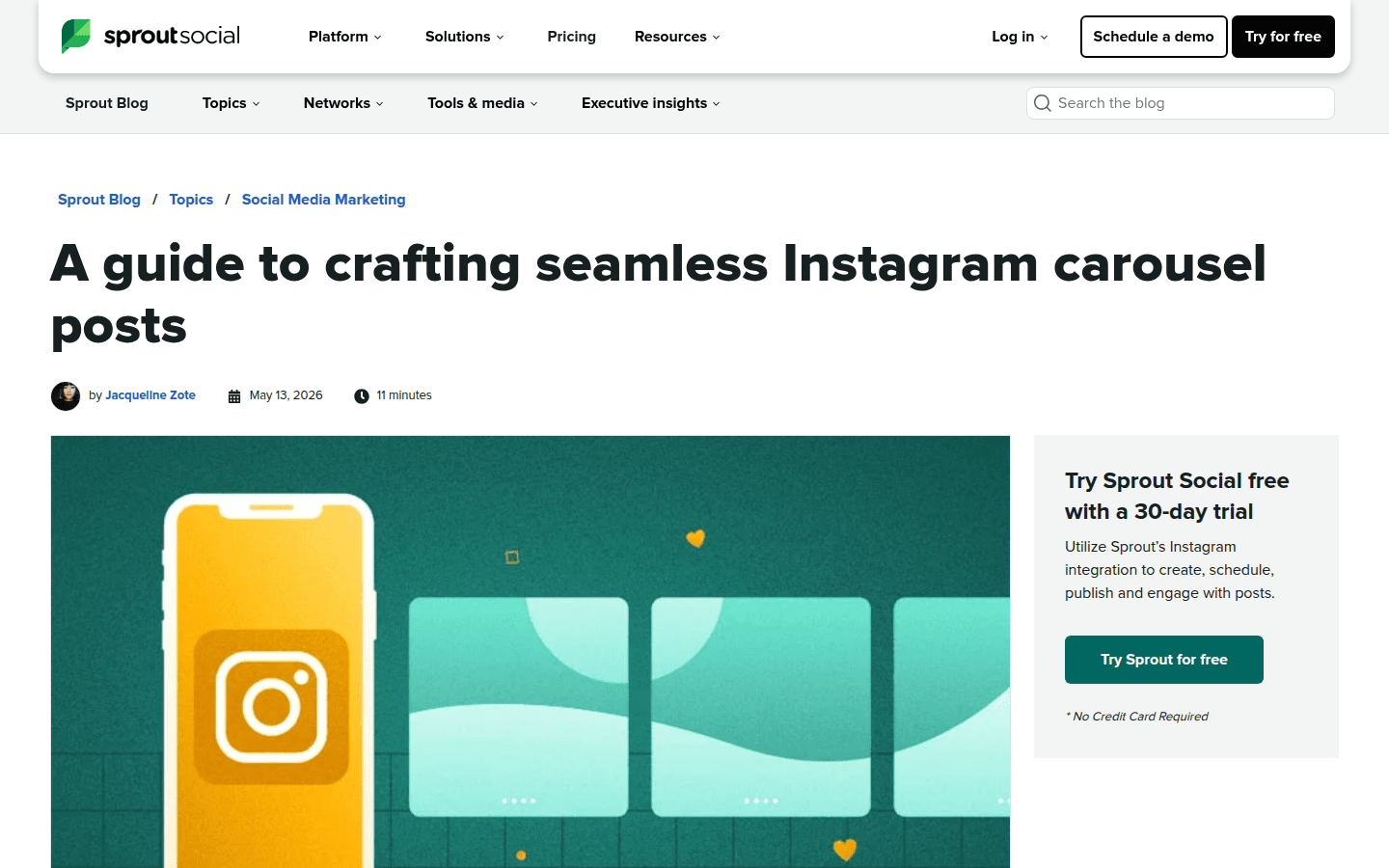
For more insights into crafting effective social media content, consider exploring resources like Sprout Social’s guide on crafting seamless Instagram carousel posts, which offers additional best practices and examples.
 Photo Template
 Photo Template
 Photo Template
 Logo Template