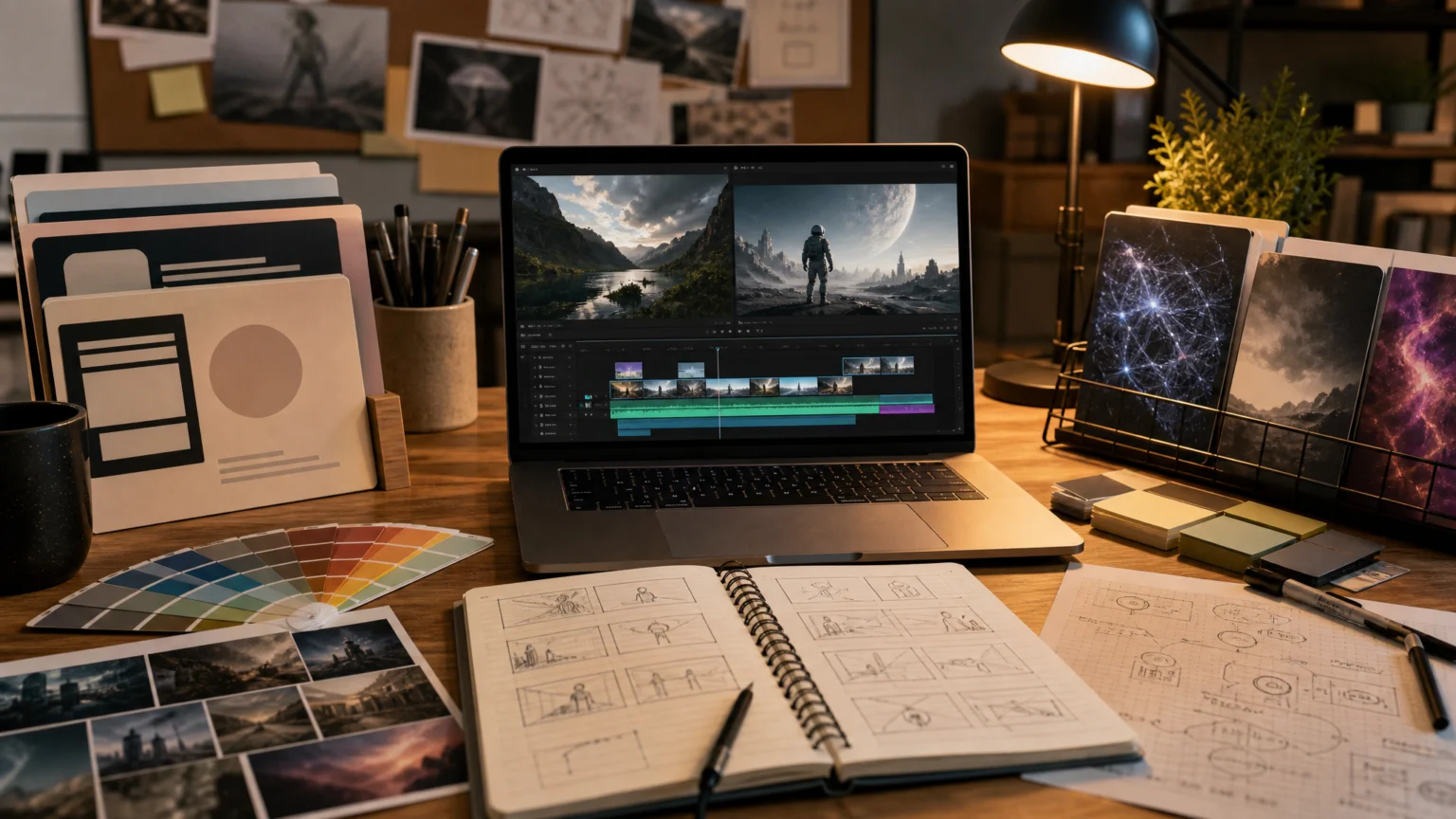
The right video tool depends less on brand familiarity than on the motion job in front of you. A template-led promo, animated text post, AI scene change, caption-heavy browser edit, or Workspace-native business video each points to a different kind of editor.
That distinction matters because these products are not aiming at the same result. Some are built to arrange layouts and animate text quickly. Others suit creator-style assembly better. A smaller group focuses on changing the footage itself.
Use these seven tools as lanes rather than a ranking. The useful decision points are template depth, text and caption controls, AI scene editing, asset support, export gates, and how much patience the editor asks from someone who is not an editor by trade.
Plan rules often shape the experience before design taste does. A tool can feel ideal until a watermark, subscription requirement, or premium template prompt appears at export.
Two very different jobs sit inside “video editing”
Canva, Adobe Express, and Clipchamp all point users toward a familiar route: start with a layout or template, place clips and text, then use built-in animation, transitions, titles, or lower thirds to reach a publishable short video.
Movavi Video Editor combines both routes on the desktop: customizable templates for a quick start, and a full timeline with one-click AI tools for creator-style edits.
By contrast, Runway is oriented around altering visual content inside clips across shots. Google Vids leans toward prompt-based generation and lightweight editing inside Workspace. VEED sits in a browser-first lane where captions, auto edits, and text-based changes are central.
CapCut is a separate case. It plainly belongs in creator-style short-form work, but the clearest official details here are about Pro-gated templates, effects, and export prompts rather than a simple map of what every free workflow includes.
So the first question is practical: are you styling a message, assembling a social clip, changing footage with AI, or making a team video inside an existing work suite? Once that is clear, the shortlist shrinks quickly.
Movavi Video Editor fits desktop creators who want templates they can reshape
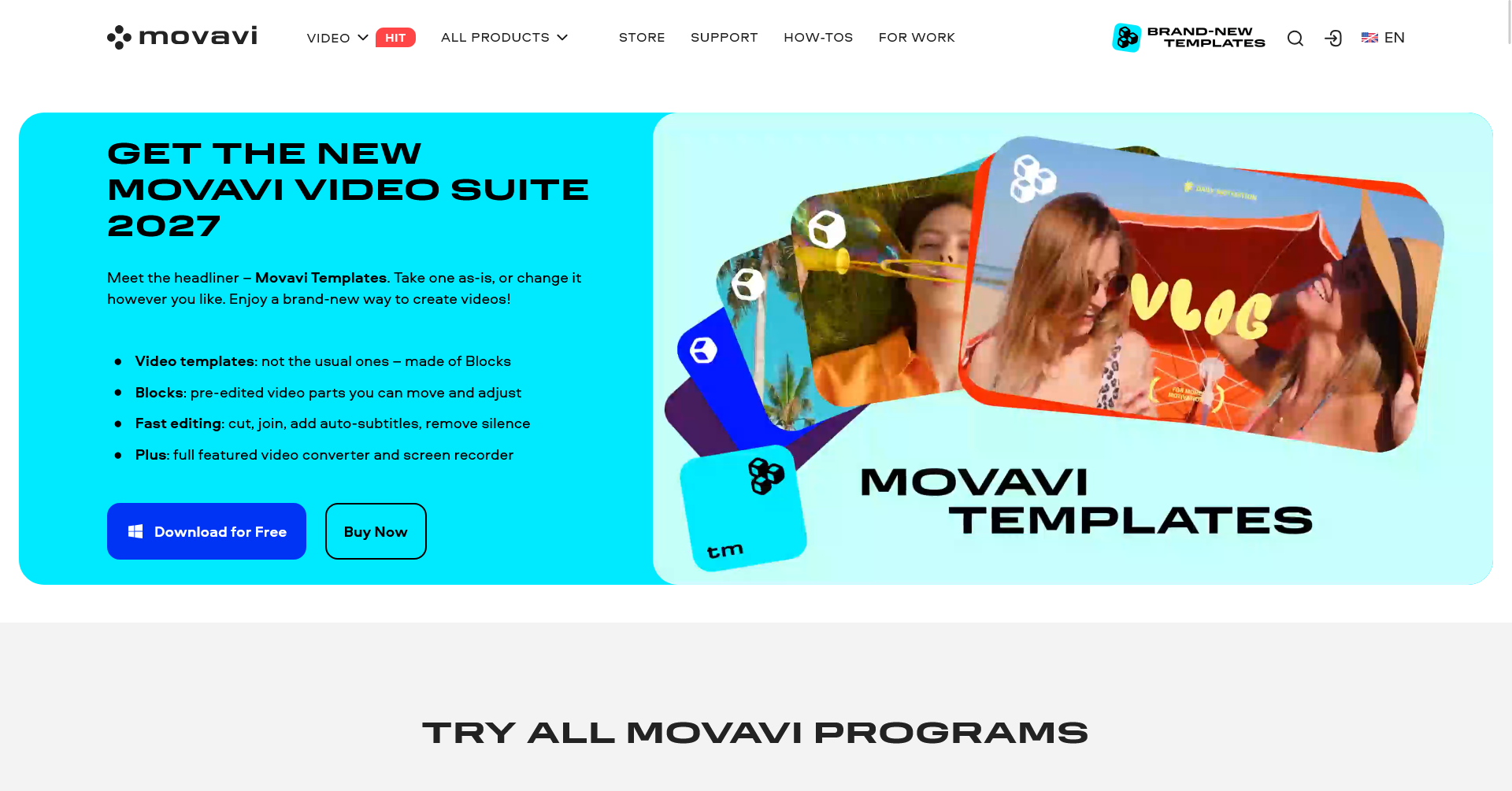
Some creators want the speed of a template without giving up a full timeline, and prefer to edit on their own computer rather than in a browser. That is the lane where Movavi Video Editor makes sense.
Movavi Video Editor is an intuitive video editor with customizable video templates, one-click AI tools, and hundreds of drag-and-drop effects. It’s built for beginners and everyday creators on Windows and macOS, and its template approach differs from the fixed layouts elsewhere in this group. Movavi Video Templates is a multi-style library of customizable, pro-looking, modular templates for any kind of video. Each template is split into Blocks, such as an intro, a countdown, or a quick-cut sequence, that can be reordered, added, removed, or restyled.
That matters if your social clips follow a format but rarely in the same order. Instead of filling in a single layout, you can move sections around while the pacing, music, and text inside each Block stay intact, so the clip still looks professionally edited.
For motion work, the editor pairs animated titles, stickers, and keyframe animation with AI motion tracking that pins text or graphics to a moving subject. Its auto subtitles generate timed captions from speech in one click, and auto-cropping reframes horizontal footage into vertical formats while keeping the subject centered, which fits bloggers and lifestyle creators who want intros, reviews, and daily vlogs reframed for Reels, Shorts, and TikTok without re-editing from scratch.
The trade-off is the setting. Movavi is a desktop app, so it lacks the browser access and cloud collaboration of Canva, VEED, or Clipchamp, and it offers fewer advanced controls than professional editors. If your clips start as raw footage on your own computer, though, that local workflow can be an advantage rather than a gap.
For brand-led motion, start with Canva or Adobe Express
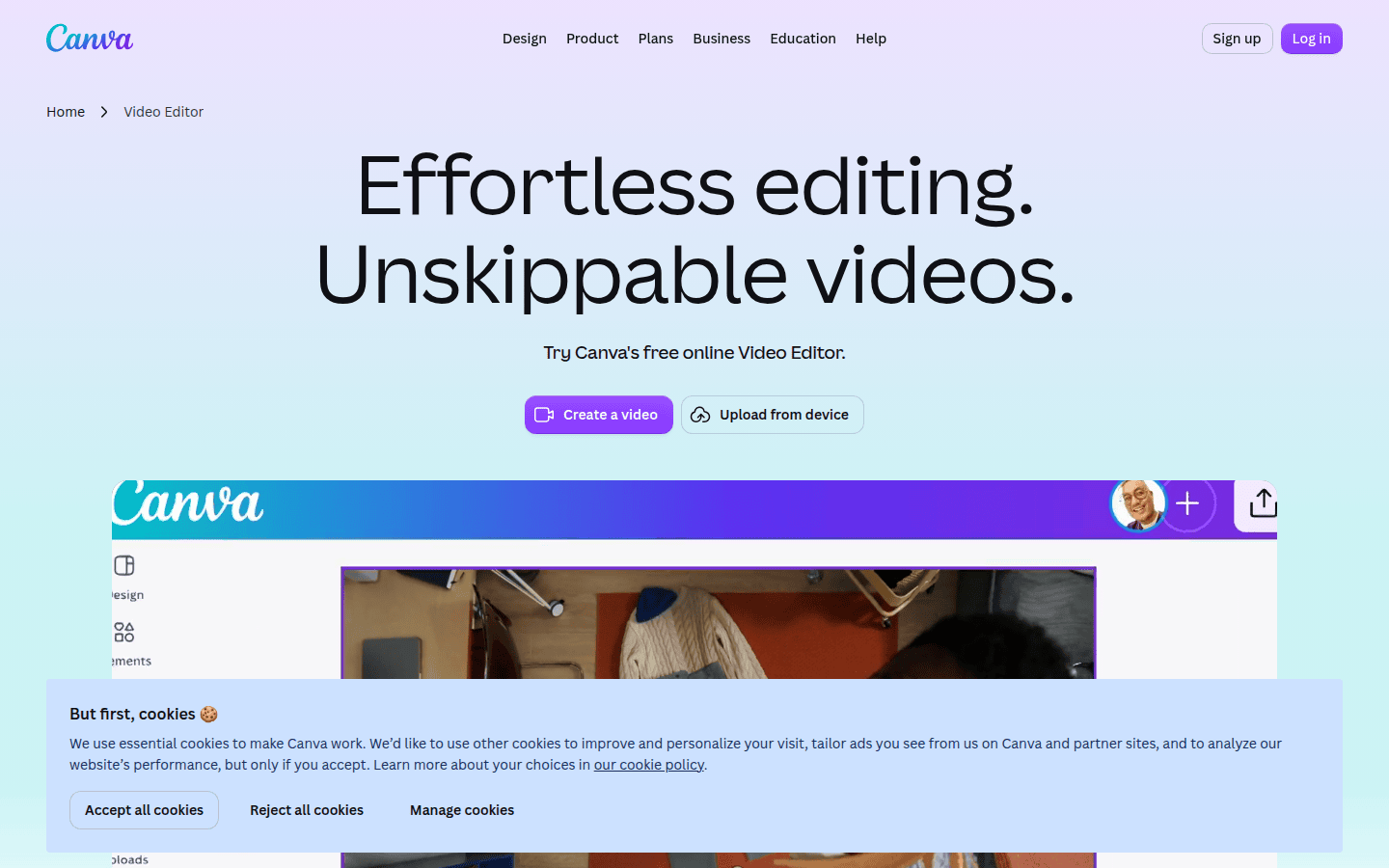
These are the most natural picks when the motion begins as a graphic composition rather than as a pile of raw shots. If the brief sounds like “turn this approved message into a polished promo,” both products make immediate sense.
Canva says you can add one-click animation or create custom animations for graphics and text. Its Help Center also describes a media-first editor with a multi-track timeline, direct clip editing, transitions, and visual audio waveforms.
That combination suggests a stronger bridge between layout thinking and simple timeline editing than many lightweight creators expect. It matters if your team already works in blocks: headline, subhead, logo, sticker, product image, and short video insert.
Canva appears well suited to building motion from those design pieces without forcing a more technical, edit-first mindset. Photo animation workflows may also be worth considering if the project is really a still image turned into a short motion post rather than a fuller video edit.
Adobe Express presents a similar promise from a slightly different angle. Its video maker page highlights templates, cut and crop tools, speed changes, and one-click animated effects for elements.
For quick promos or social posts, that points to fast assembly rather than deep motion craft. The interesting wrinkle is Adobe’s separate Firefly AI video editor page, which describes combining AI-generated clips, uploaded footage, and Adobe Stock assets on a multi-track timeline.
That opens a broader AI-assisted path, but it should not be treated as identical to the core Express experience for every user. If your work starts with brand layout and text, Canva looks especially comfortable for graphic-first motion.
If you want template-led assembly but may later want Adobe’s wider AI timeline path, Express becomes more interesting. The public pages here do not establish which one has the deeper template catalog, stronger brand controls, or easier captioning.
For quick creator edits, weigh Clipchamp against CapCut
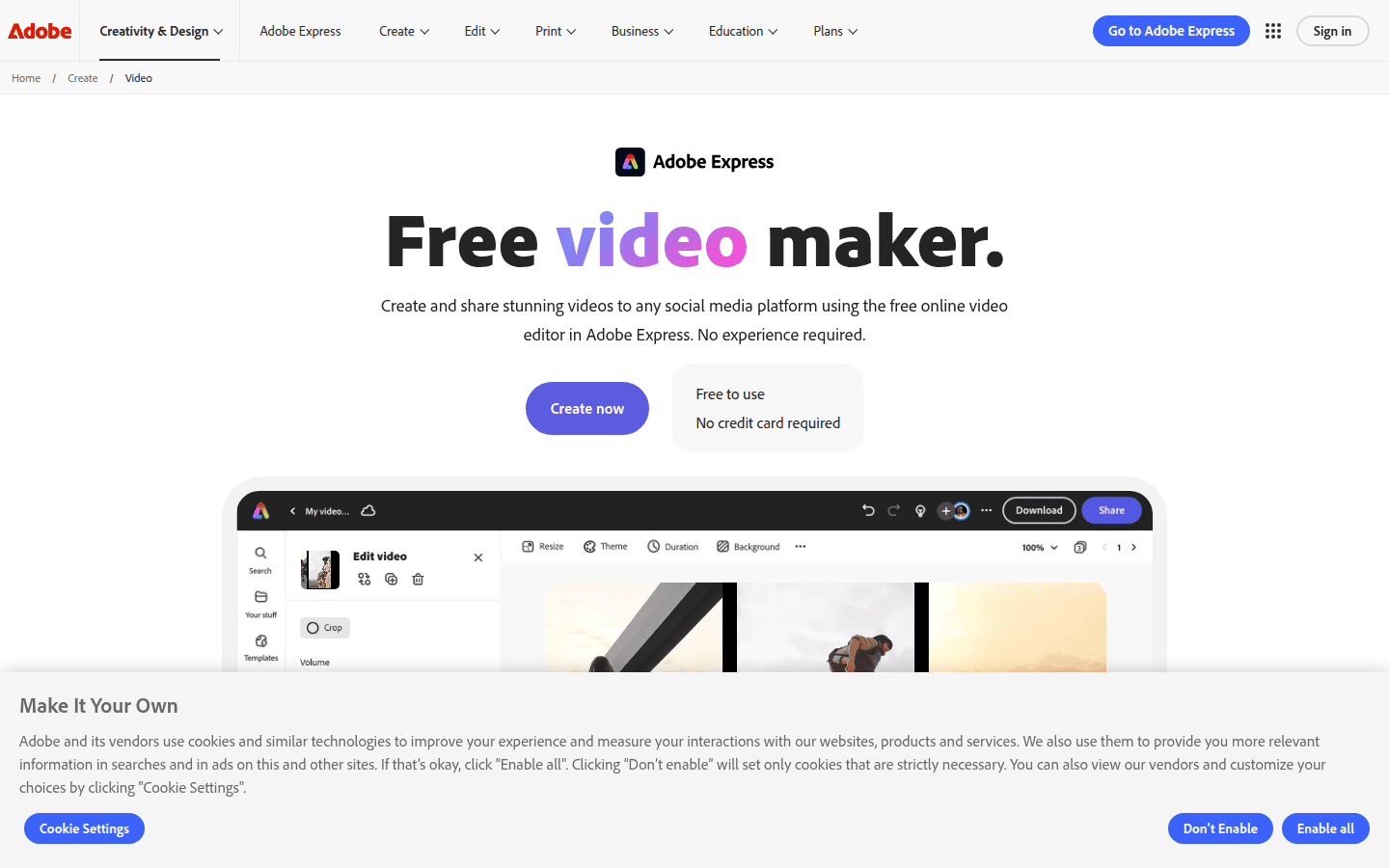
Some clips do not begin with a brand board. They begin with urgency: make a reel, trim a promo, add titles, drop in transitions, export, post. In that lane, Clipchamp and CapCut make more sense than the design-first pair.
Clipchamp highlights editable templates, effects, transitions, titles, animated lower thirds, and a content library with over 1 million royalty-free assets. That is a practical package for explainers, short promos, or creator-style clips that still need a polished finish.
The export note is what sets it apart for casual use. Clipchamp’s pricing page says the free plan exports up to 1080p HD and includes watermark-free video exports.
If you are testing formats, drafting client options, or simply trying to post without friction, that can matter more than one extra visual effect. CapCut, by contrast, is easier to recommend with a little caution attached.
CapCut says Pro unlocks advanced text templates, video effects, body effects, filters, and 100GB of cloud storage. Another support page says Pro purchase prompts can appear when you use premium templates or export settings such as 4K, 60fps, or no watermark.
That matters if your editing style depends on trying many flashy text treatments and ready-made effects until one lands. CapCut clearly serves that habit, but the official material here is stronger on what can trigger a Pro gate than on a simple baseline promise for every free export path.
So Clipchamp is the safer pick when you want a cleaner official free-export story and a broad, stock-backed assembly workflow. CapCut fits the creator who wants social-native motion elements and can tolerate more uncertainty around which template or export choice may push them into Pro.
VEED is strongest when captions and browser speed lead the brief
VEED deserves its own lane because the official positioning is less about decorating frames and more about making browser editing fast, legible, and assisted. If spoken content drives the clip, that changes the choice.
VEED says users can edit with drag-and-drop tools, text-based editing, Auto Edits, captions, and AI video generation. That set of claims points to a workflow where speed comes from transcript-like edits and automated cleanup rather than from spending time on motion presets.
If your post needs elaborate lower thirds or a dense animated layout system, the public material here does not establish VEED as the strongest option. It is better framed as a browser editor that helps you get spoken or informational video into shape quickly.
The practical limitation is visible up front: VEED says free exports include a watermark, while paid plans unlock watermark-free exports and higher-resolution output. If the deliverable must be clean on the first export, that gate may move VEED down your list immediately.
Still, VEED can be the better fit when your biggest bottleneck is captions, simple browser edits, or turning rough footage into something publishable without learning a more layered editor. The trade-off is less certainty around advanced animation depth, stock library scale, and fine title customization.
Runway is for footage changes, not just frame styling
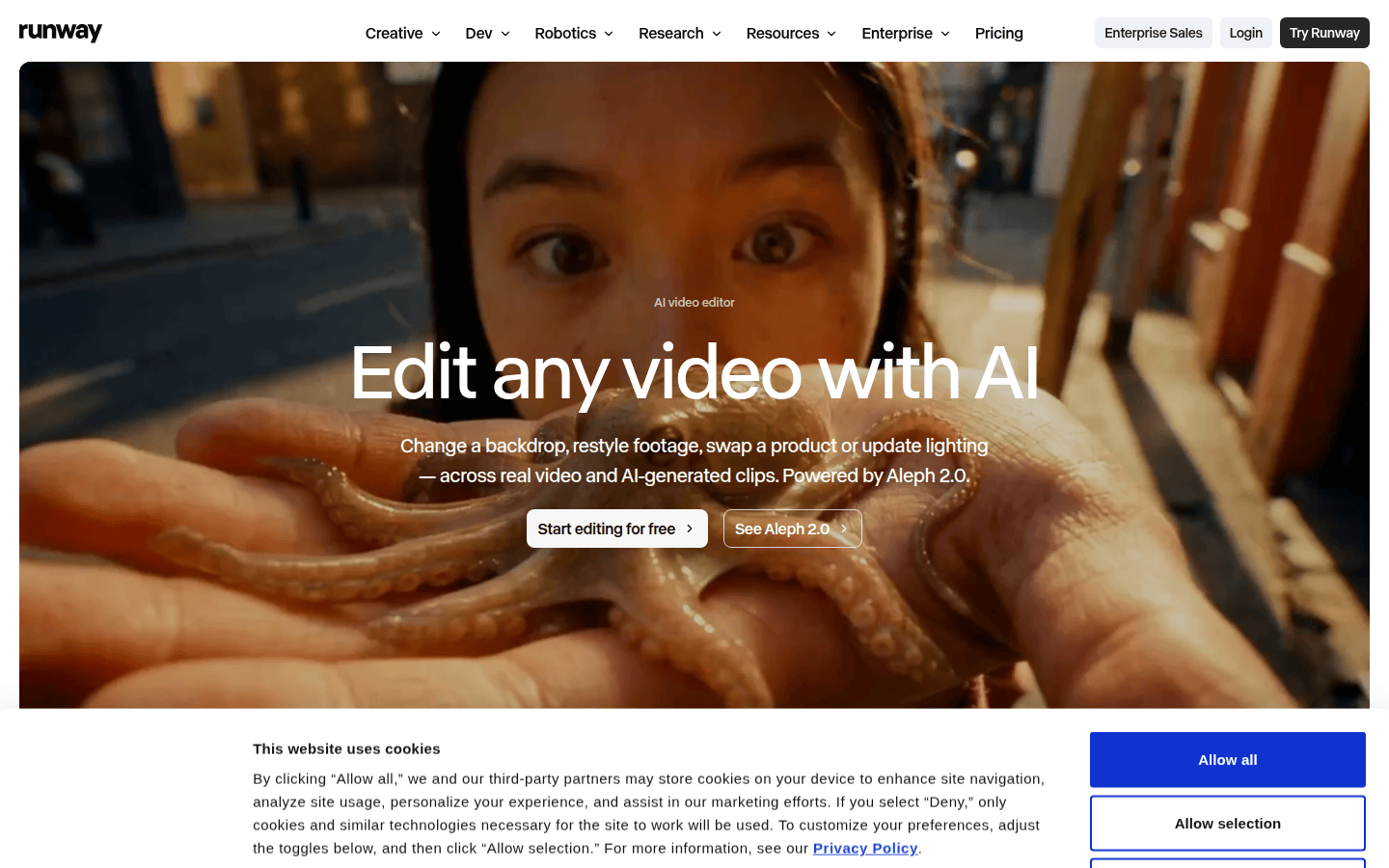
Runway belongs in a different conversation from Canva, Adobe Express, or Clipchamp. It is not mainly about adding movement to a layout. It is about changing what appears inside the moving image.
Runway says its AI video editor can change a backdrop, restyle footage, swap a product, or update lighting across real or AI-generated clips. It also says Aleph 2.0 applies edits across every shot, including across cuts and scene transitions.
That matters if your social clip problem sounds like this: the product changed color, the background now clashes with the campaign, or the footage needs a visual restyle without rebuilding the shoot. In those cases, template libraries and title presets solve the wrong problem.
A text-heavy promo or branded explainer is different. There, the main work is sequencing headlines and assets. Runway may be more tool than you need, and the public pages here do not establish deeper motion-graphics controls or a clearer export story than the products built for straightforward social assembly.
Use it when footage transformation is the task. Be more careful when the task is simple social animation, because its public promise is about scene edits across shots rather than ease with lower thirds, template-based promos, or broad free-export flexibility.
Google Vids makes the most sense inside Workspace
Google Vids fits best when the surrounding environment is already chosen. If your team lives in Google Workspace and needs lightweight video help inside that world, Vids becomes easier to justify than a separate editor.
The official help page says Google Vids can generate a clip from a text prompt, animate a static image, edit uploaded video, or extend a clip with more actions. That is a meaningful mix for internal explainers, quick business videos, and simple motion tasks built around prompts rather than detailed manual editing.
That matters if the goal is not “make the most stylish reel,” but “get a serviceable video assembled where the team already works.” The friction saved by staying inside Workspace can outweigh the missing flourish of a more consumer-facing tool.
The limitation is equally clear. AI clip generation requires an eligible Google Workspace subscription, and the public material here does not establish Vids as a broad consumer social-video ecosystem with advanced motion controls or a large template culture.
If you mainly want to animate a still or make a short business clip from a prompt, Vids is relevant. If you need heavier creator-style effects or richer title systems, one of the dedicated social editors will usually fit the brief more directly.
Export rules shape the real editing experience
Movavi is clear about its free version. The free download lets you test editing essentials and every automated tool, while exports are capped at 60 seconds and carry a watermark. The full version, paid monthly or annually, removes those limits, so a free Movavi export works ideally as a test draft rather than a final deliverable.
Export rules are not housekeeping details. They decide whether a tool is useful for mockups only, safe for client drafts, or ready for final delivery on day one.
Clipchamp has the clearest free-plan note in this group from the public pages here: up to 1080p HD and watermark-free exports on the free plan. If you need a low-friction starting point, that is a concrete advantage.
VEED is also clear, but in the opposite direction. Free exports include a watermark, and paid plans remove the watermark while unlocking higher-resolution output. That does not make VEED a poor tool, but it does mean your first test export may not be usable for publication.
CapCut requires more careful reading. The support pages confirm that premium templates and some export settings, including examples such as 4K, 60fps, or no watermark, can trigger Pro prompts.
The gap is that these pages do not provide a full official baseline for every non-Pro export path, so broad claims about free export behavior would be too loose. Google Vids adds a different kind of gate: feature availability.
Its AI clip generation depends on an eligible Workspace subscription. If access is the barrier rather than the watermark, that matters even earlier in the decision. Adobe Express is presented as free on its main video maker page, but its broader Firefly AI timeline capabilities should not be assumed across all Express usage.
Runway likewise confirms a free plan exists, while making clear that some advanced tools require paid plans. Before you build the first version, check the exact export path that matches your intended workflow.
A clean free draft in Clipchamp, a watermarked draft in VEED, a Pro-triggered CapCut template, and a subscription-gated Google Vids feature produce very different editing realities.
The best choice depends on what must be finished first
If the clip starts as a brand layout with animated headlines, Canva and Adobe Express are the most logical first stops. Canva looks especially suited to graphic-first assembly with a documented multi-track editor and text animation, while Adobe Express stays appealing for template-led speed and a possible path into Adobe’s separate AI timeline tooling.
If the job is short-form assembly with titles, transitions, stock support, and a straightforward free export route, Clipchamp is the most comfortable choice from the official details here. If you want creator-style templates and effects and do not mind navigating more Pro prompts, CapCut remains a strong but less predictable path. If you want template speed with room to restructure the clip, plus one-click captions and vertical reframing on a desktop, Movavi Video Editor is the more flexible starting point.
If spoken content, captions, or text-based edits are slowing you down, VEED is easier to justify than a more motion-polished editor. If the challenge is altering footage across shots, Runway is the one tool here clearly built around that problem rather than around decoration.
And if your team already works inside Workspace and needs AI clip generation, image animation, or lightweight business video assembly there, Google Vids is the narrow but sensible choice.
Start with the part of the clip you need finished before export: the layout, the captions, the footage change, the prompt-generated sequence, or the creator-style polish. Then check the export and access gates before you commit the timeline.
 Icon Template
 Photo Template
 Icon Template
 Logo Template