
Getting started

How to create your first animation

  • General
  • Logo
  • Photo
  • Icon

Open Studio, choose the Animator that matches your source, upload the asset, select an animation effect, adjust the canvas and preview the complete sequence. You can save and preview before activating a pass for final export.

Browse Help topics
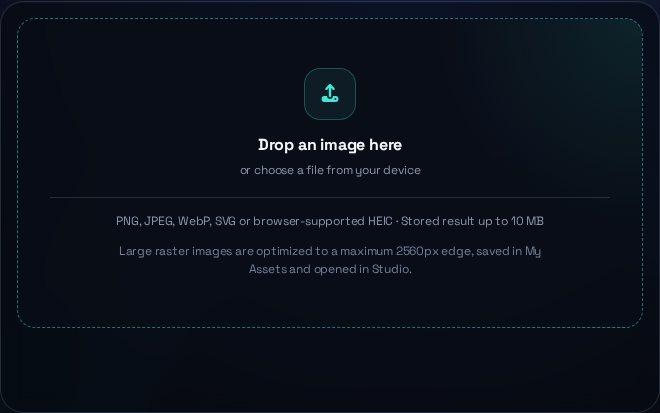
DanceLogo Studio upload area showing accepted asset formats and upload guidance. Open full size
The upload step accepts a supported source and prepares larger raster images before storage.
On this page
  1. Before you start
  2. Steps
  3. Expected result
  4. Common problems

Before you start

  • Prepare a PNG, JPEG, WebP or SVG source that you own or are allowed to use.

Steps

  1. Open Studio and choose Logo, Photo or Icon Animator.
  2. Drop the source into the upload area or choose it from your device.
  3. Open Motion and choose a compatible animation effect.
  4. Use Canvas and Background to set the final placement.
  5. Play the full preview, check its restart and save the project.
  6. Open Export when you are ready to choose the size, frame rate and format.

Expected result

The saved animation appears in My Animations and can be reopened for further editing.

Common problems

  • Upload rejected: check the file type, stored-size and pixel limits.
  • Preview unavailable: wait for the source and selected renderer to finish loading.
Open DanceLogo Studio
Was this guide helpful? Your answer stays in this browser.

Last reviewed August 19, 2026 Reviewed by DanceLogo product team Updated August 19, 2026

Still blocked? Send support the exact message, browser, device and steps that reproduce the issue. Never share a password or full payment-card number. Contact DanceLogo support.

Related Help