

What “fast” really means for social video
What slows you down when you make short social videos: changing the footage itself, cutting spoken lines cleanly, assembling branded layouts, or getting a usable export out the door?
That matters more than a long feature list. These four editors are not trying to win the same race, and their public pages describe four different kinds of speed.
Runway leans into AI-led clip transformation. Descript treats the transcript as the main editing surface. Canva handles video more like a designed post with motion. Microsoft Clipchamp stays closer to straightforward browser editing with a simpler free export policy.
Put them in one bucket and the choice gets fuzzy. A talking-head editor and an AI transformation tool can both feel fast, but not for the same person.
The practical move is to pick the editor that removes your main bottleneck first, then check the export limits, credits, and watermark rules against what you actually publish.
The tradeoffs worth checking before anything else
| Service | Editing model | Caption or transcript workflow | Free export limit | Watermark rule from official docs | Higher-tier export ceiling | Output formats verified | Important caveat |
|---|---|---|---|---|---|---|---|
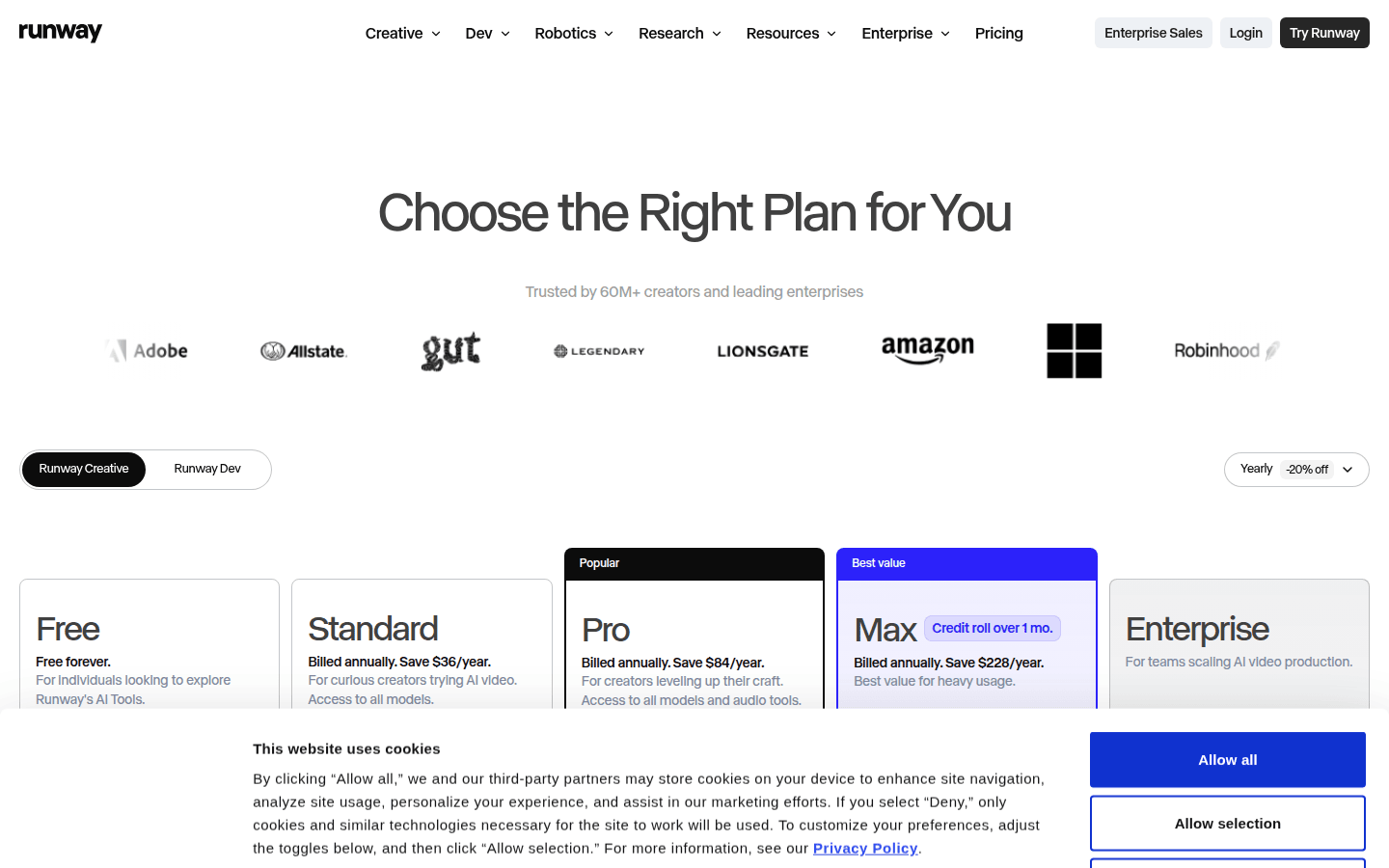
| Runway | AI-first editing surface with timeline, frame preview, prompt input, and multi-shot export | No transcript-first workflow confirmed on the cited pages | Free plan includes 125 one-time credits | Standard plan lists no watermarks | Edit Studio supports sequences up to 30 seconds at 1080p | Not confirmed on the cited pages beyond the listed editing and export claims | Edit Studio and Aleph 2.0 are listed on paid plans |
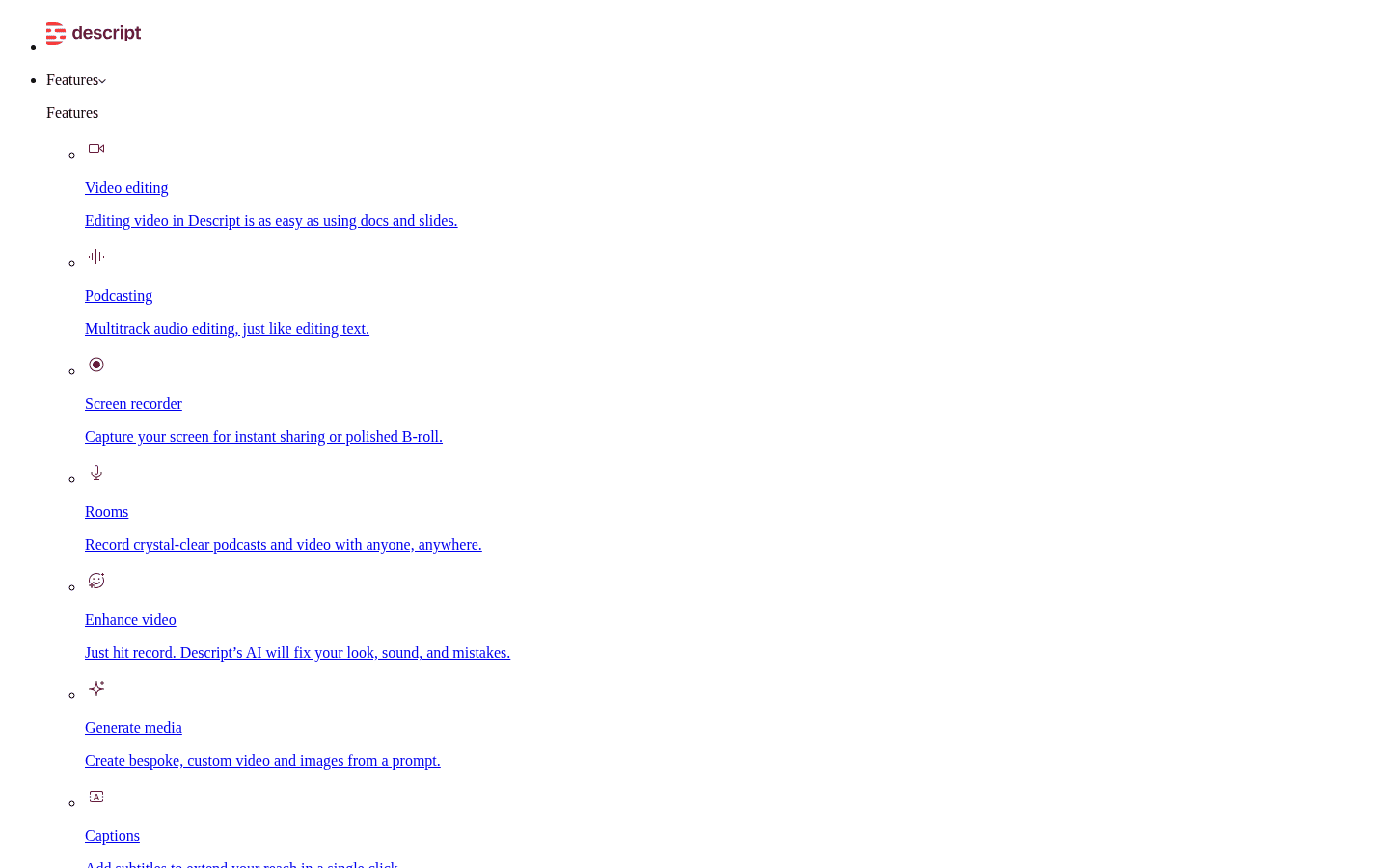
| Descript | Transcript-driven editing | Delete or move words in the transcript to remove or move media | 720p | Free exports are watermark-free | 1080p on Hobbyist, 4K on Creator | Not confirmed on the cited pages beyond the export-resolution claims | Best suited to spoken-content editing, not AI clip transformation |
| Canva | Template-led visual assembly | Generated captions are editable on a dedicated timeline layer | Up to 30 minutes at 1920×1080 | Free exports can be watermark-free when only free assets are used | Up to 2 hours at 3840×2160 on listed paid education or business-type plans | MP4 and GIF | Watermark behavior depends on asset licensing, not only plan tier |
| Clipchamp | Simple browser timeline editing | AI subtitles and text to speech are listed, but not transcript-first editing | Up to 1080p HD | Free exports are watermark-free | Up to 4K UHD on premium tiers | MP4 | Premium assets or feature context can still affect upgrade behavior |
The word free does not mean the same thing across these products. One tool meters use through credits, another through resolution, another through asset licensing, and another through plan-based features.
That can change the answer quickly. The fastest tool for a draft post may become the slowest one once you need 4K, editable captions, premium assets, or several AI retries.
Runway makes sense when the footage needs to change
Runway fits best when your time sink is not trimming dialogue. It fits when you want to reshape, generate, or alter clips through an AI-led editing surface.
Its product page describes Edit Studio as the place where Aleph 2.0 lives, with a timeline, frame preview, prompt input, and multi-shot export. That is a distinct model, not a transcript editor with a few AI extras.
If that is not your bottleneck, Runway can be the wrong kind of fast. Someone cutting interviews into neat social clips may gain less from prompt-based transformation as the first editing step.
The plan details matter. Runway says Edit Studio and Aleph 2.0 are on paid plans, while its pricing page lists a free plan with 125 one-time credits.
That credit model changes how experimentation feels. It can suit short, punchy clip work, but it is less comforting if you expect a long cycle of testing, revising, and trying again.
There is also a clear boundary in the public docs: Edit Studio supports sequences up to 30 seconds at 1080p. For short social posts, that may be enough. For anything longer, it is a real limit.
The watermark story is narrower than the others here. The pricing page says the Standard plan lists no watermarks, which points paid users toward cleaner output expectations.
Runway suits marketers and creators making short visual pieces where transformation is the job: reworking scenes, changing footage, or building brief AI-assisted edits that benefit more from prompts than transcript cleanup.
The trade-off is plain. Runway looks quickest when the clip itself needs changing. It looks less convenient when the work is mostly spoken-word cleanup, routine exports, or longer assembly.
Descript is fastest when words are doing the heavy lifting
Descript earns its speed in a very direct way: you work on the language first. For speech-heavy video, that cuts out a lot of fiddly timeline trimming.
Its public pages say you can edit audio and video by changing words in the transcript. The help docs add the useful detail: deleting a word removes it from the media, and moving text moves the media with it.
That makes the product easy to picture for talking-head clips, interviews, webinars, podcast video, commentary, and founder updates. If your rough cut is really a script cleanup, this model is straightforward.
It is less useful to think of Descript here as a generative video platform. The clearest public support is for transcript-driven editing and the export ladder tied to each plan.
The free plan is easy to understand: Descript lists 720p watermark-free export. That works for tests, drafts, and lighter social publishing where full HD is not essential.
If you need more room, the upgrade path is simple. Hobbyist lists 1080p export, and Creator lists 4K export.
The limit is just as clear. This advantage depends on spoken content being central. If your videos rely more on kinetic layout, layered graphics, or visual templates than on dialogue, transcript speed may not help much.
Still, for people who think by sentence rather than by frame, Descript is the clearest fit in this group.
That is why it often feels fastest for educational clips, interviews, podcast snippets, and repurposed webinar moments. It lets you cut hesitation, repetition, and digressions without living in a timeline all day.
Canva works best when the video behaves like a designed post
Canva is quickest when the video acts like a social layout with motion. You are arranging text, images, footage, captions, and brand elements, not doing deep editorial surgery.
That difference matters. If your work usually starts with a template, a layout, and a caption style, Canva addresses the assembly job more directly than a transcript editor or an AI transformation surface.
Its export rules are also more nuanced than they look at first glance. Canva says free users can export without a watermark if they use only free elements, images, footage, and music.
So the real friction is asset choice. The same project can export cleanly or push you toward an upgrade depending on what slips into the design.
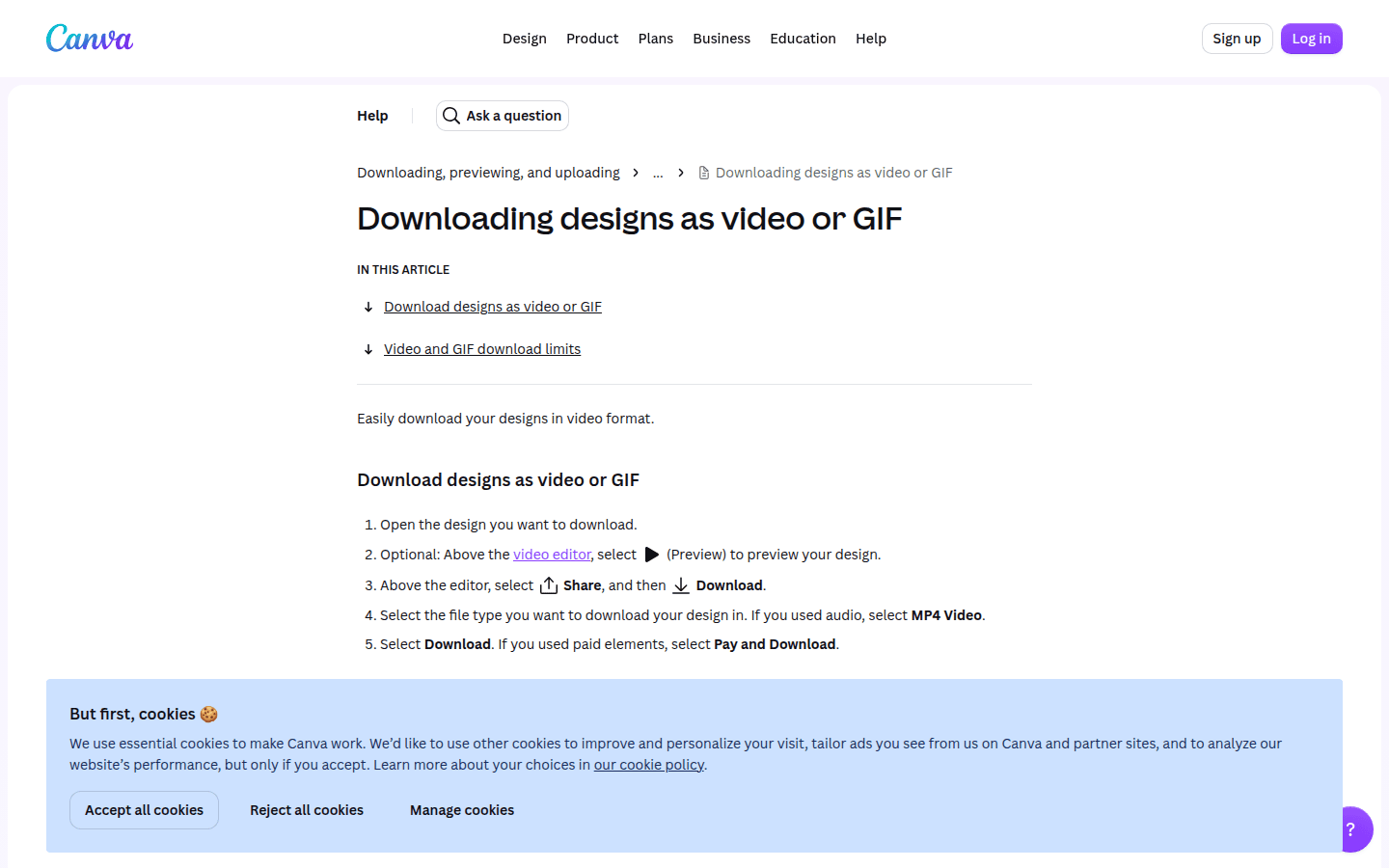
Canva gives free users video downloads up to 30 minutes at 1920×1080. Its help docs also list MP4 downloads up to 2 hours and 3840×2160 for Pro, Teams, Education, and Nonprofits.
Those ceilings are generous for social work, especially when you are repurposing one piece across several platforms. Canva also supports MP4 and GIF, which suits short loops and post-friendly formats.
Captions are another reason it can move quickly. Canva’s help docs say generated captions appear on a dedicated timeline layer and can be edited for both text and timing.
That puts Canva in a useful middle position for social teams: more visual and layout-led than Descript, less transformation-led than Runway, and often a better fit for captioned promos, announcements, and simple branded explainers.
If you decide you do not need a full editor at all, and mostly need branded motion built around logos or short assets, animated logos for social media can be the simpler route.
Canva suits small brands, social managers, educators, and in-house marketers who care more about clean composition, editable captions, and practical exports than advanced editorial control.
Clipchamp is the clearest pick for a simple browser timeline
Clipchamp is the plainest option here, and that is part of its appeal. It is made for people who want browser editing, familiar controls, and fewer questions about whether a basic export will be usable.
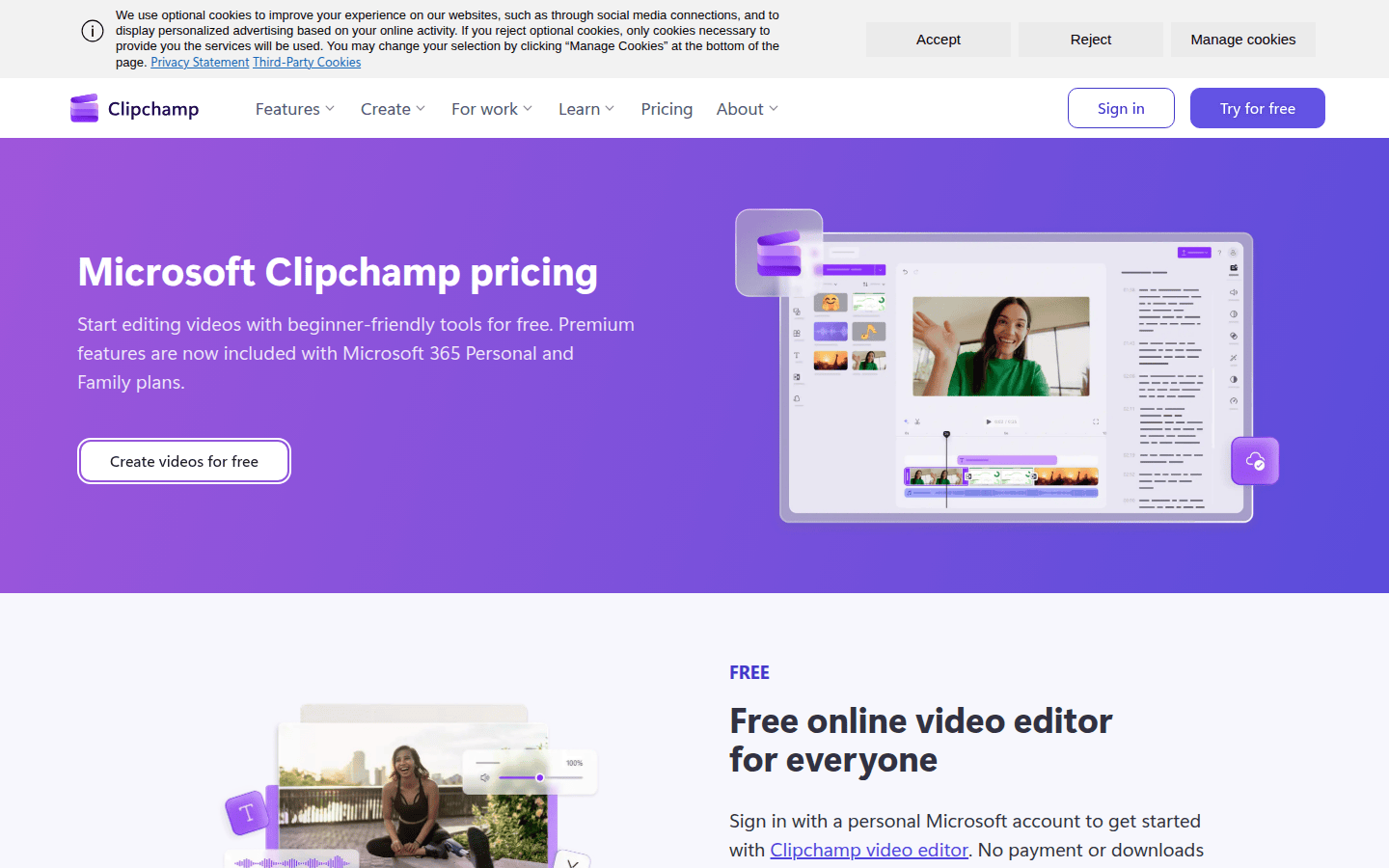
Its pricing page says the free plan includes watermark-free exports up to 1080p HD. For many short-form social jobs, that is the most immediately practical free output policy in this group.
Clipchamp is not presented on the cited pages as a prompt-based generator or a transcript-first editor. Its speed comes from simplicity, not from changing the editing model.
That does not make it empty. Microsoft’s feature documentation lists AI subtitles, text to speech, auto cut, and noise suppression for personal plans.
Those tools cover common cleanup work for social posts: adding captions, generating voiceover, trimming sections, and reducing distracting background noise. Helpful assists, not a whole new workflow.
Export expectations are straightforward too. Microsoft support says finished videos export as MP4, with audio-only export also supported.
If your bottleneck is basic production, that simplicity can matter more than specialized tools. A solo creator posting regular shorts may prefer open, cut, caption, export over a more ambitious interface.
The upgrade path is easy to read. Premium features are included with Microsoft 365 Personal and Family, and the pricing page lists up to 4K UHD on premium tiers.
The limit is that simple does not mean unrestricted. Premium assets or feature context can still change what a project requires, so the clean free export story works best as a strong baseline rather than a blanket promise.
A two-minute way to decide
If your first move is changing the footage with AI, pick Runway. Its clearest caution is paid access for key tools and the 30-second 1080p Edit Studio limit.
If your first move is deleting filler words, reordering lines, and shaping speech, pick Descript. Its transcript behavior is the clearest documented speed advantage here.
If your first move is assembling a branded visual post with motion, pick Canva. It combines editable captions with practical social export options, though watermark-free export depends on using only free assets.
If your first move is getting a polished social video out of a browser with minimal friction, pick Clipchamp. Its free 1080p watermark-free export is the easiest starting point to trust, with 4K higher up the plan ladder.
One caution applies to all four. Export rules, premium features, and plan details change faster than editing habits, so choose the workflow first and recheck the limits before you commit.
 Photo Template
 Template
 Icon Template
 Icon Template