
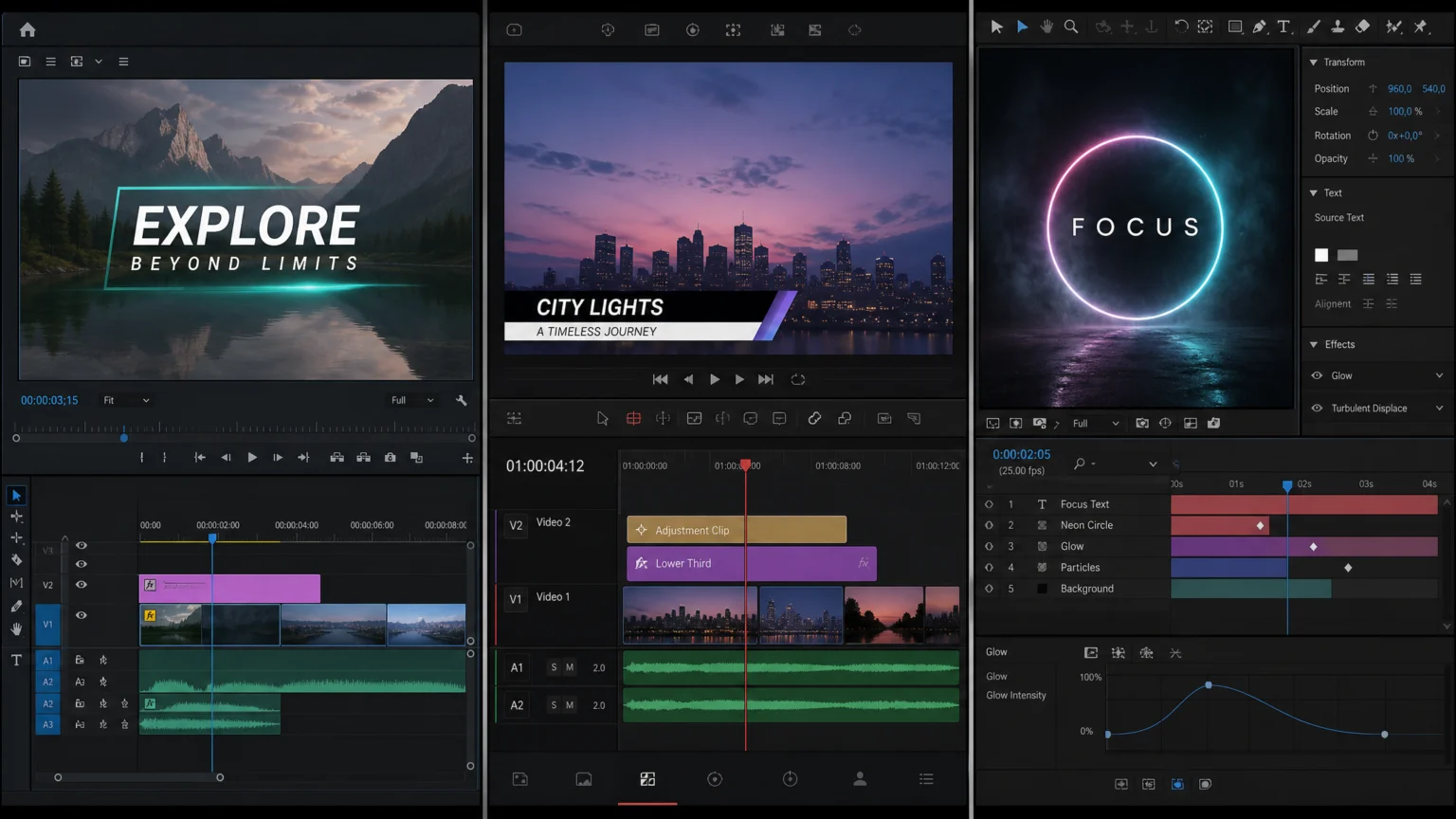
Integrating Motion Graphics: A Workflow Challenge
Imagine a video project where a simple animated lower third takes an hour to implement because you’re constantly switching between applications, exporting, and re-importing. This common friction point highlights a core challenge for many video editors: how fluidly does your chosen software allow you to design, animate, and integrate motion graphics without breaking your creative flow? The goal isn’t just to edit video, but to seamlessly weave in animated elements that enhance branding, convey information, or add visual flair.
For designers and video professionals, selecting a primary video editing application means evaluating its native motion graphics capabilities, its support for templates, and how well it integrates with specialized animation tools. A smooth workflow can mean the difference between a quick title card and a complex animated sequence that takes hours. This comparison examines how three major video editing platforms—Adobe Premiere Pro, Final Cut Pro, and DaVinci Resolve—approach motion graphics, helping you pinpoint the best fit for your production needs.
Adobe Premiere Pro: Essential Graphics and MOGRTs for Efficiency
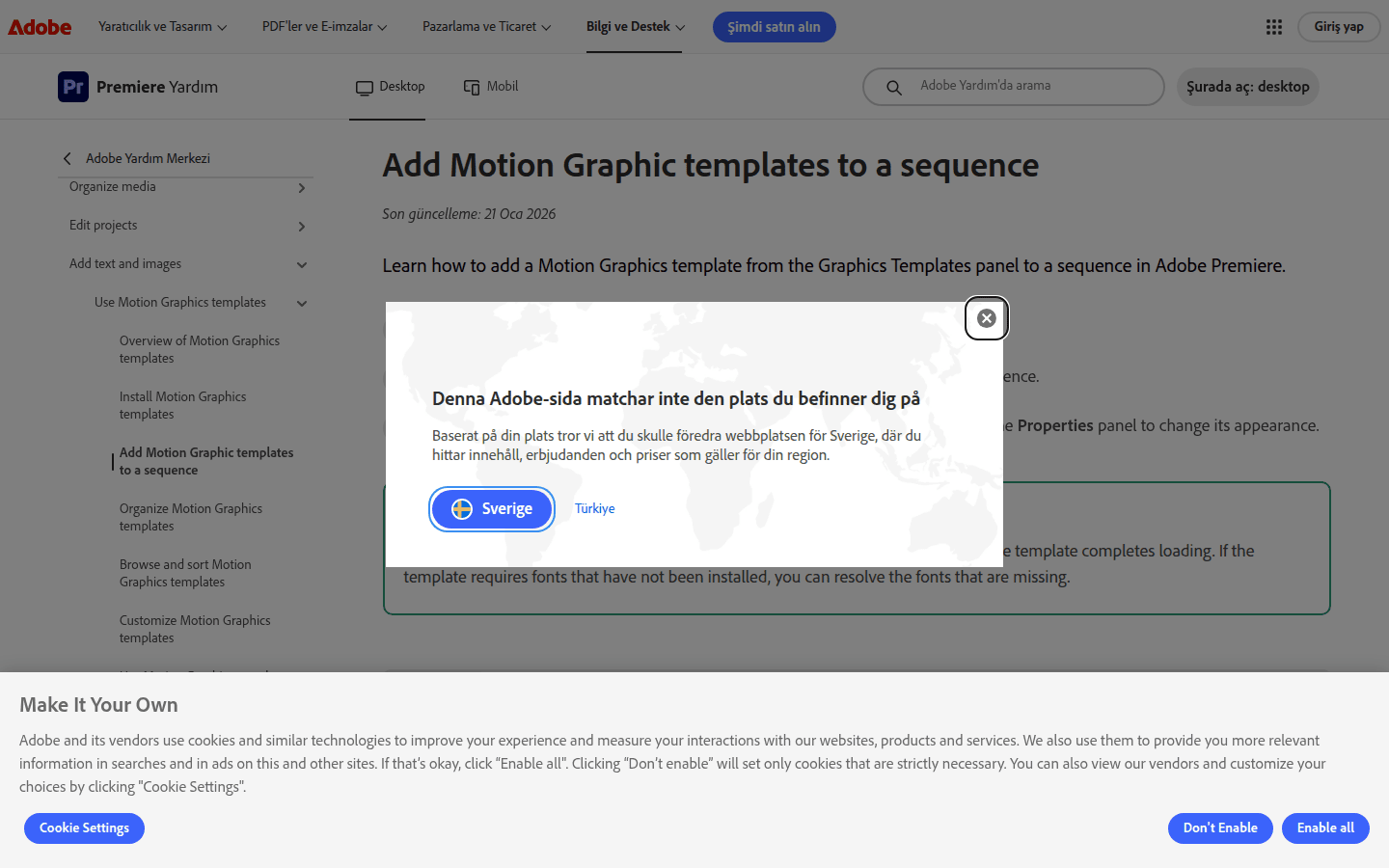
Premiere Pro offers a robust environment for motion graphics, particularly for those already invested in the Adobe ecosystem. Its strength lies in its tight integration with After Effects, allowing for a fluid workflow where complex animations can be created in After Effects and then brought into Premiere Pro as Motion Graphics templates (MOGRTs). These templates are highly customizable directly within Premiere Pro, enabling editors to change text, colors, and other parameters without ever opening After Effects.
The Essential Graphics panel in Premiere Pro serves as a central hub for managing and creating motion graphics. It provides access to a library of prebuilt templates and offers advanced animation controls for crafting original graphics. Editors can browse, install, and place these templates directly onto the timeline, adjusting their duration and properties to fit the sequence. This approach streamlines the process for editors who need to frequently use branded lower thirds, intro sequences, or animated infographics.
For example, a marketing team needing a consistent animated call-to-action across multiple videos can create one MOGRT in After Effects, then distribute it to all video editors. Each editor can then customize the text and color for their specific campaign within Premiere Pro, maintaining brand consistency without needing advanced animation skills. This makes Premiere Pro particularly strong for collaborative environments where graphic designers and video editors work closely.
The ability to fine-tune animations directly within the editing timeline, without round-tripping to a separate application, significantly speeds up production. This is especially valuable when working under tight deadlines or when frequent revisions are expected. Premiere Pro’s integration with other Adobe Creative Cloud applications like Photoshop and Illustrator further enhances its utility for designers who often incorporate static graphics into their motion projects. The learning curve for basic motion graphics in Premiere Pro is relatively gentle, making it accessible for editors new to animation, while still offering depth for more experienced users through MOGRTs.
Final Cut Pro: Motion for Dedicated Animation Control
Final Cut Pro distinguishes itself by including a dedicated companion application, Motion, for building sophisticated motion graphics. This separate application provides a full timeline, layers, and a keyframe editor, offering deep control over animation, titles, transitions, generators, and filters. The integration between Final Cut Pro and Motion is seamless, allowing users to create custom templates in Motion that appear directly within Final Cut Pro’s browser.
Motion templates can be designed as Final Cut Effect, Transition, Title, or Generator templates, providing flexibility for various animation needs. This means a designer can build a complex animated title sequence with specific behaviors and parameters in Motion, and then an editor can simply drag and drop it into their Final Cut Pro timeline, adjusting only the exposed controls. This separation of concerns allows for highly specialized motion graphics creation without cluttering the main editing interface.
Consider a broadcast designer creating a news package intro. They can craft intricate animations, particle effects, and text reveals in Motion, then save it as a Final Cut Pro Title template. The news editor can then quickly drop this template into their daily segments, updating only the headline text, ensuring a consistent and high-quality visual identity across all broadcasts. This workflow is ideal for Mac-centric production houses that require both speed and detailed animation capabilities.
The dedicated nature of Motion means it’s built from the ground up for animation, offering tools and a workflow optimized for motion designers. While it requires learning a separate application, the depth of control over animation curves, behaviors, and particle systems often outweighs this initial investment for those who regularly produce complex motion graphics. For Mac users, this integrated suite provides a powerful and efficient solution for high-end motion design within a video editing context.
DaVinci Resolve: Fusion for Integrated Visual Effects and Compositing
DaVinci Resolve integrates powerful visual effects and motion graphics capabilities through its Fusion page. Fusion is a node-based compositing environment that provides cinematic visual effects and broadcast-quality motion graphics directly within Resolve. This means users don’t need to switch applications for advanced compositing, 3D particle systems, vector paint, or rotoscoping, maintaining a single, unified workflow.
The node-based interface of Fusion offers a different approach to motion graphics compared to layer-based systems. Each effect or operation is represented by a node, allowing for complex visual trees that are often easier to manage and modify for intricate effects. While it has a steeper learning curve for those accustomed to layer-based editors, it provides immense power and flexibility for visual effects artists and motion designers.
For instance, a filmmaker working on a sci-fi short might need to create a holographic interface or a complex energy blast. Instead of exporting clips to a separate VFX application, they can jump into Fusion within Resolve, build the entire effect using nodes, and see it rendered in context with their edit. DaVinci Resolve also emphasizes interoperability, working with major file formats and other post-production software, including Final Cut Pro and Premiere Pro, which can be useful for collaborative projects across different platforms.
Fusion’s strength lies in its comprehensive toolset for visual effects, making it suitable for projects requiring advanced compositing, 3D integration, and complex procedural animations. The node-based workflow, while initially challenging, offers unparalleled control and non-destructive editing, allowing for precise adjustments at any stage of the effect creation. For professionals who need a truly all-in-one solution for editing, color grading, audio, and high-end visual effects, Resolve’s Fusion page presents a compelling, integrated option.
Comparing Motion Graphics Workflows: Key Considerations
When deciding between these three powerful video editing platforms for your motion graphics workflow, consider the following trade-offs:
- Native Motion Graphics Tools: Premiere Pro leverages its Essential Graphics panel and MOGRTs for in-editor animation. Final Cut Pro offers the dedicated Motion app for deep animation control. DaVinci Resolve integrates Fusion for node-based visual effects and motion graphics.
- Template and Preset Workflow Support: Premiere Pro excels with MOGRTs, allowing easy customization of After Effects-created templates. Final Cut Pro uses Motion to create highly customizable templates that live within the main editor. DaVinci Resolve’s Fusion allows for building reusable compositions, though not always in the same user-friendly template format as the others.
- Integration with Motion Design or Compositing Tools: Premiere Pro’s strength is its seamless link with After Effects. Final Cut Pro’s tight integration with its companion Motion app is a key feature. DaVinci Resolve’s Fusion is an integrated compositing suite, eliminating the need for external tools for many VFX tasks.
- Interchange with Other Post-Production Software: Premiere Pro is part of a broader Adobe Creative Cloud ecosystem, facilitating exchange with Photoshop, Illustrator, and Audition. Final Cut Pro is optimized for the Apple ecosystem. DaVinci Resolve is known for its broad file format support and interoperability with other major editing suites.
If your team relies heavily on After Effects for complex animations and needs a streamlined way to bring them into video edits for quick customization, Premiere Pro is a strong contender. If you operate within an Apple-centric environment and need a dedicated, powerful application for creating intricate titles and effects that integrate smoothly into your edits, Final Cut Pro with Motion offers a compelling solution. For those seeking an all-in-one post-production suite with integrated, high-end visual effects and motion graphics capabilities, DaVinci Resolve’s Fusion page provides a comprehensive, albeit more complex, workflow.
The best choice ultimately aligns with your existing software ecosystem, your team’s skill sets, and the complexity of the motion graphics you produce regularly. Consider the learning curve for each platform’s motion graphics tools and how well they fit into your current production pipeline. Test the template workflows and native animation controls in each to see which one feels most intuitive for your daily tasks. A trial period can reveal which software minimizes friction and maximizes creative output for your specific motion graphics needs.
 Photo Template
 Icon Template
 Photo Template
 Logo Template